Connect an AI API
Before AI can translate products, articles, and page content, or use the built-in AI chat window, connect your own AI API in AllinCMS admin. This guide uses DeepSeek. Other providers work in the same way when they offer a compatible API.
Get an API key -> add it in AllinCMS admin -> select a Flash model -> save after the green check appears. Then you can use translations and the built-in AI chat window.
Overview
1. Get an API key from DeepSeek
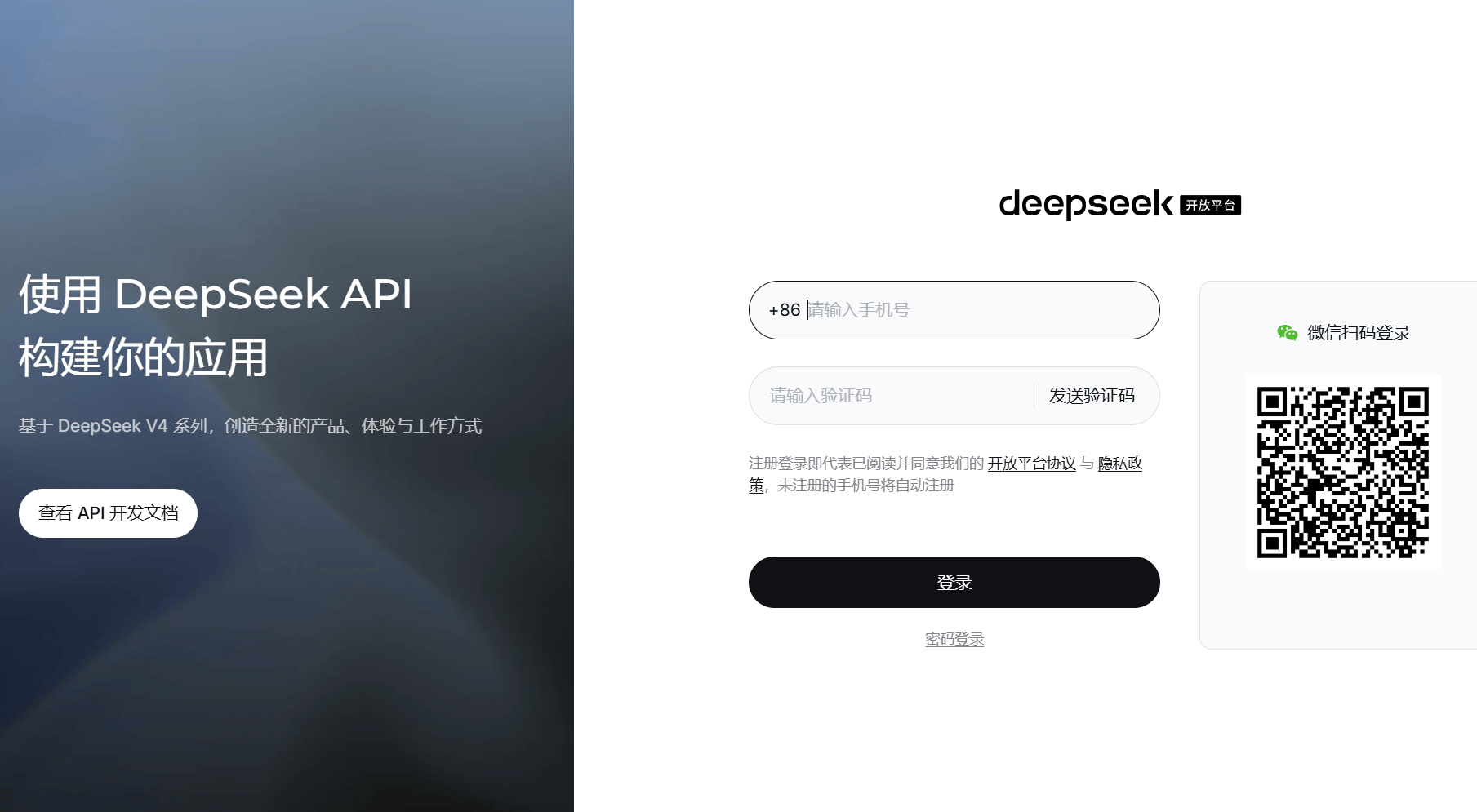
Open the DeepSeek developer platform sign-in page. You can sign in with a phone verification code or WeChat QR code.
Verify your account and top up
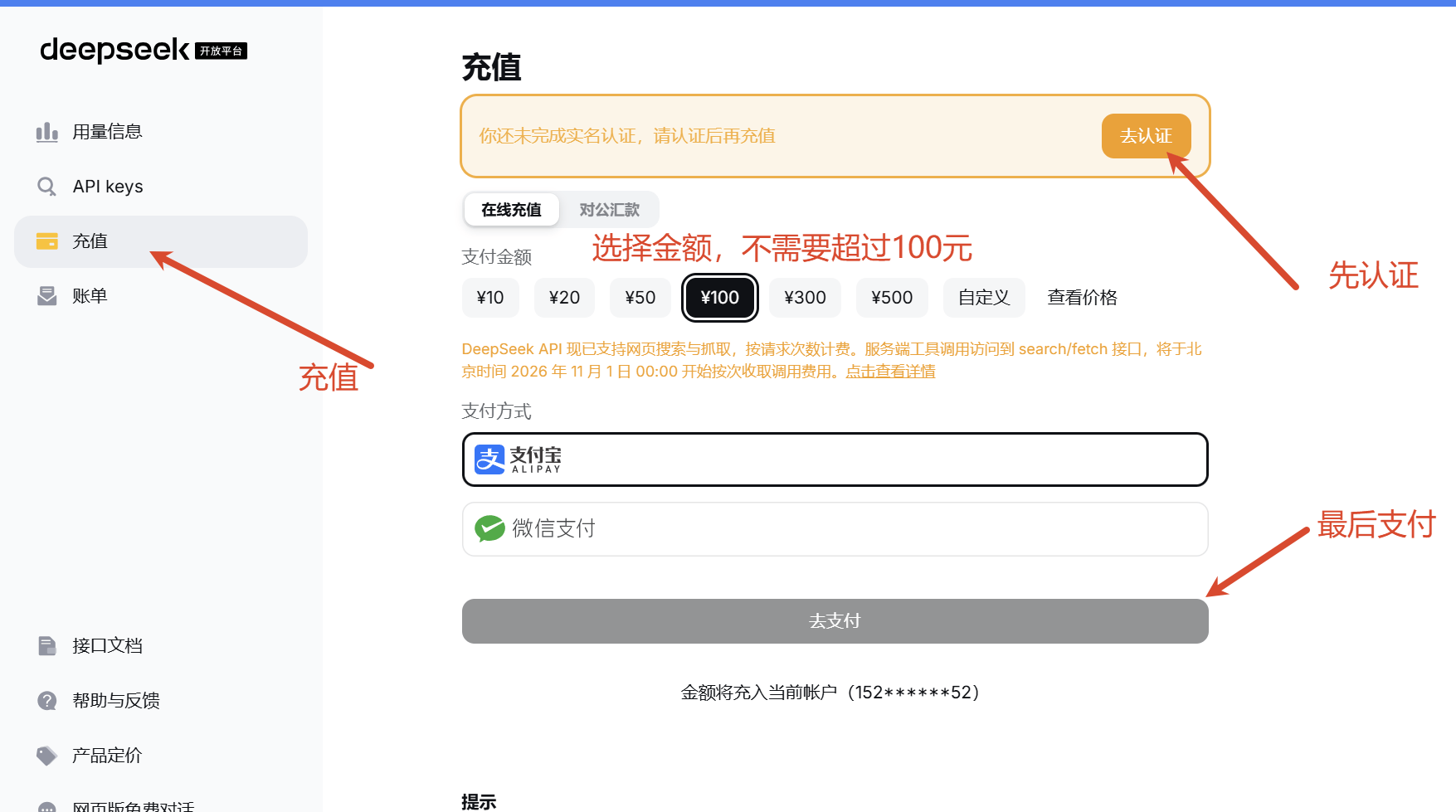
After signing in, select Top up in the left menu. If you see a verification reminder, complete it first, then return to top up. A small amount is enough for an initial test.
Create an API key
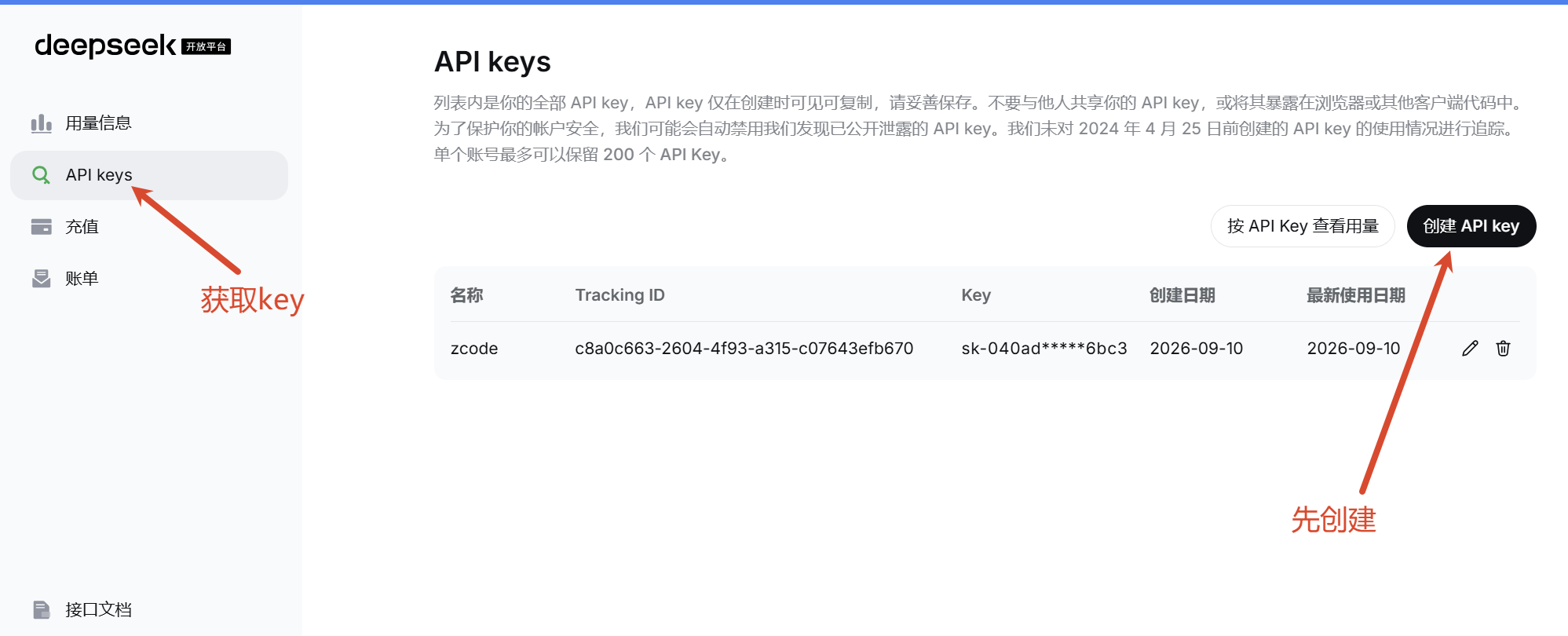
Select API keys in the left menu, then select Create API key in the upper-right corner.
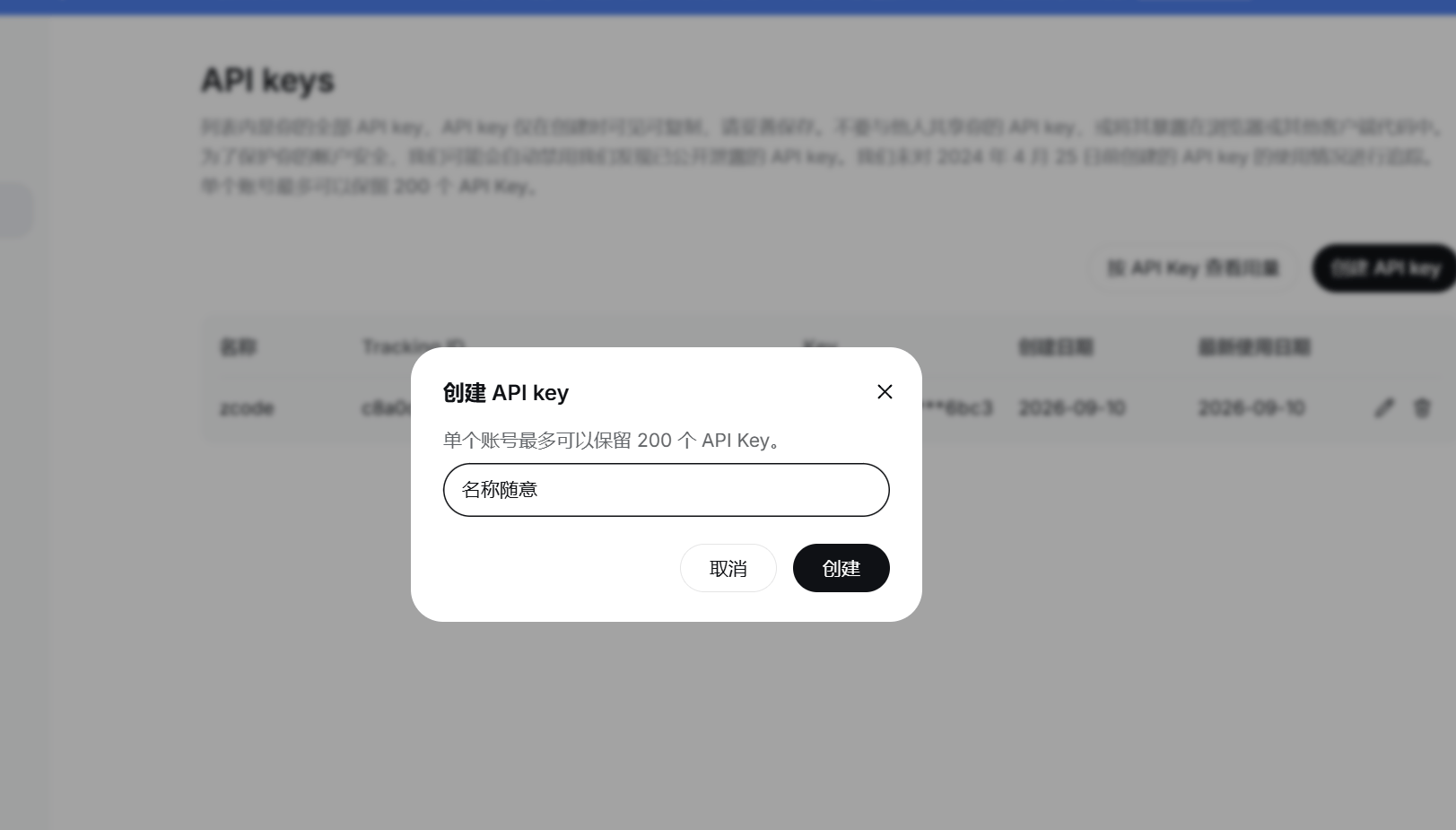
The name is only for your own reference. Use any useful label, such as allincms-translation, then select Create.
When the key is created, select Copy immediately. Save the full key in a password manager or another secure private location.
After closing this dialog, DeepSeek will not show the full key again. If you lose it, delete the old key and create another one. Never send an API key to support staff, colleagues, or a chat window.
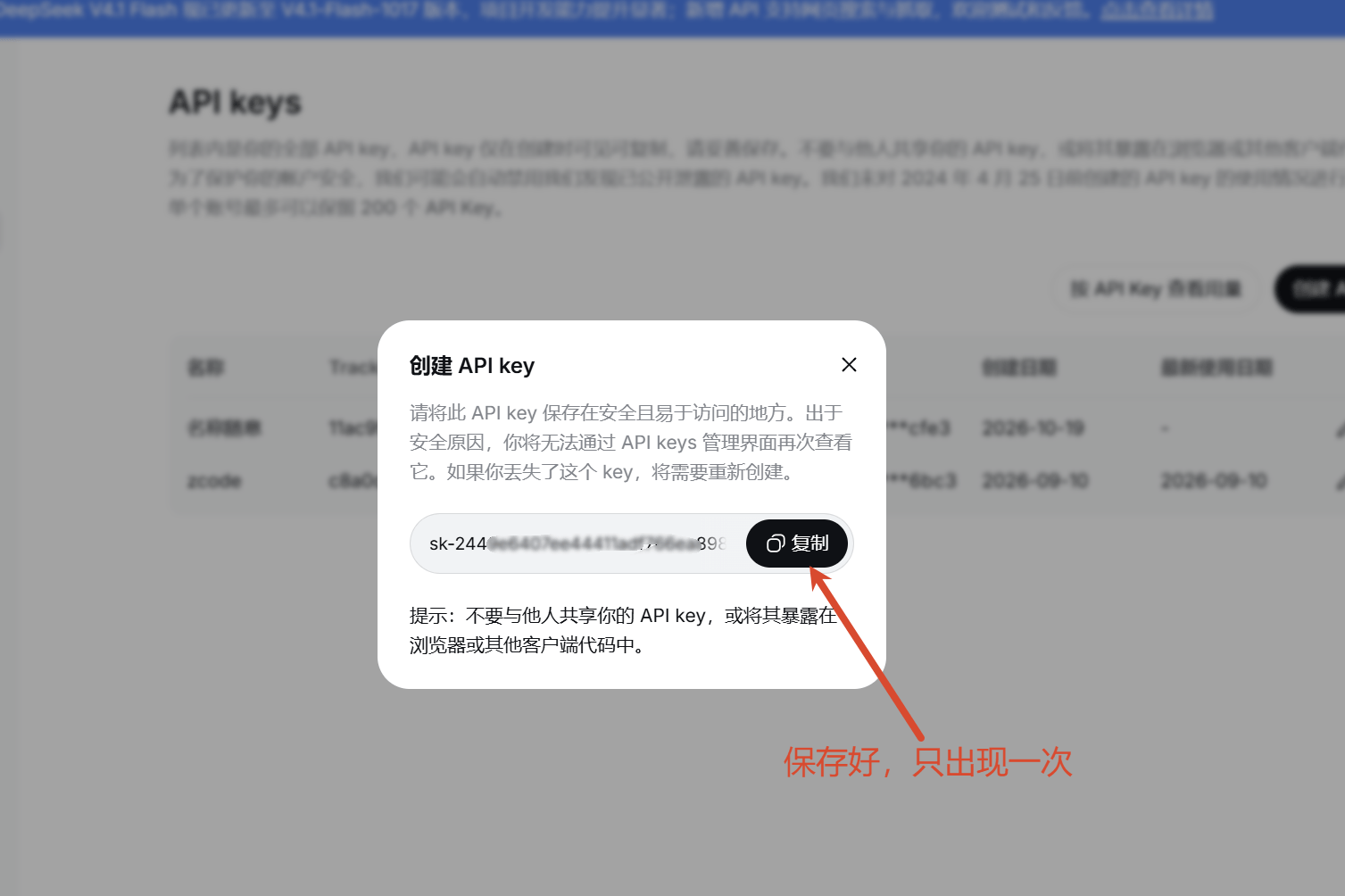
Your account now has a balance and an API key. Next, return to AllinCMS admin.
2. Configure AllinCMS admin
Sign in to AllinCMS admin, then open Settings -> AI Configuration in the left menu. This AI configuration is used by the editor, content translation, and the built-in AI chat window, so finish it before using those features.
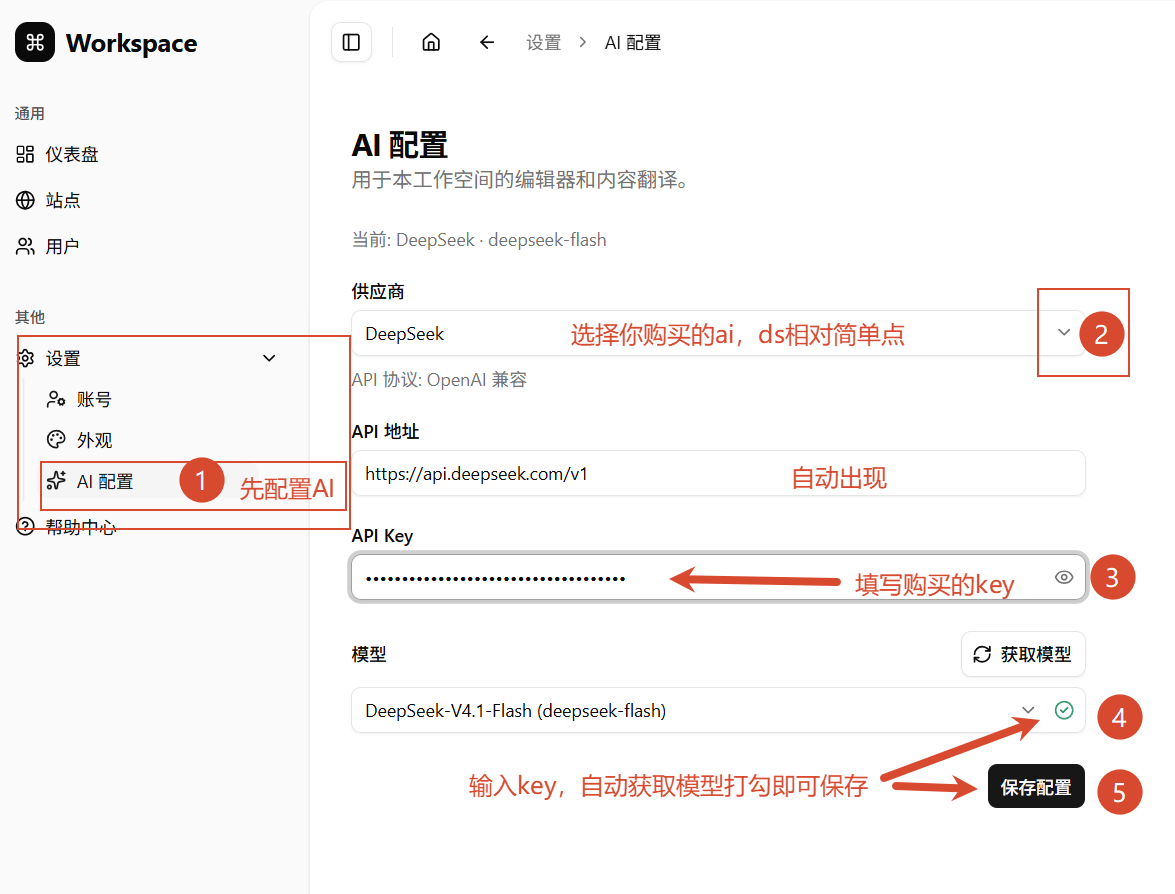
Complete the fields in this order:
- Choose
DeepSeekfrom theProvidermenu. Choose the matching provider when using another AI service. - The
API URLappears automatically after selecting a provider. For DeepSeek it ishttps://api.deepseek.com/v1; normally, keep the prefilled address. - Paste the complete key into
API Keyand wait for models to load automatically. If they do not appear, selectGet models. - Choose a Flash model from the available model list.
- When the green check appears next to the model, select
Save configuration. The updated interface does not require a separateTest configurationbutton.
Each AI provider has its own endpoint. Check the provider's official API documentation first. If it is still unclear, ask your current AI assistant or the provider's support: "What is this provider's OpenAI-compatible API endpoint?" Do not guess the address.
Use Flash first for multilingual translation, product copy, and article drafts. Pro is a higher-cost model and is normally unnecessary for this job.
3. Confirm translation is ready
When the green check appears next to the model and you have saved the configuration, this setup step is complete. You can now use AI translation in products, articles, and pages. You can also send a message in the built-in AI chat window to confirm that it replies normally.
If models do not load automatically after entering your key, or the list stays empty after selecting Get models, check these items in order:
| Check | What to do |
|---|---|
| API URL | For DeepSeek, use https://api.deepseek.com/v1 and include /v1. |
| API key | Paste the complete key again and make sure there are no extra spaces. |
| Balance and verification | Return to DeepSeek and confirm account verification and an available balance. |
| Model status | Read any page messages. If models have not loaded or the green check is missing, correct the configuration, load models again, then save. |
Common mistakes
| Common mistake | What to do instead |
|---|---|
| Sharing an API key in a screenshot or chat | An API key can incur charges. Enter it only in your own AllinCMS admin. |
| Closing the dialog before saving the key | Create a new key and delete the old one when it is no longer used. |
| Choosing Pro by default | Start with Flash for everyday translation to reduce cost and response time. |
| Saving before a model loads successfully | Check the URL, key, or account balance, load models again and wait for the green check before saving. |
With AI connected, translate products, articles, and page content, or use the built-in AI chat window. When you are ready to translate the whole site, read Enable site languages. Check that source information and product specifications are accurate before translating them into additional languages.