Enable site languages
Wait until your website is live or your products, articles, and pages are mostly complete before enabling more languages. First connect an AI API, because the system needs it to translate content.
Open Site Languages -> add the languages you actually need -> wait for translation -> switch languages on the public site to check. Do not enable many languages at once, and do not change the default language unless there is a real need.
Overview
1. Choose the right time
First complete most of the default-language content: products, articles, pages, menus, and contact details. Translating after this point means fewer rounds of retranslation and review when the source content changes.
Site languages rely on the AI configured in AllinCMS admin. If you have not set it up yet, finish Connect an AI API, confirm the test succeeds, then return to add languages.
2. Open Site Languages
In AllinCMS admin, open Settings -> Site Languages in the left menu, then select Add language in the upper-right corner.
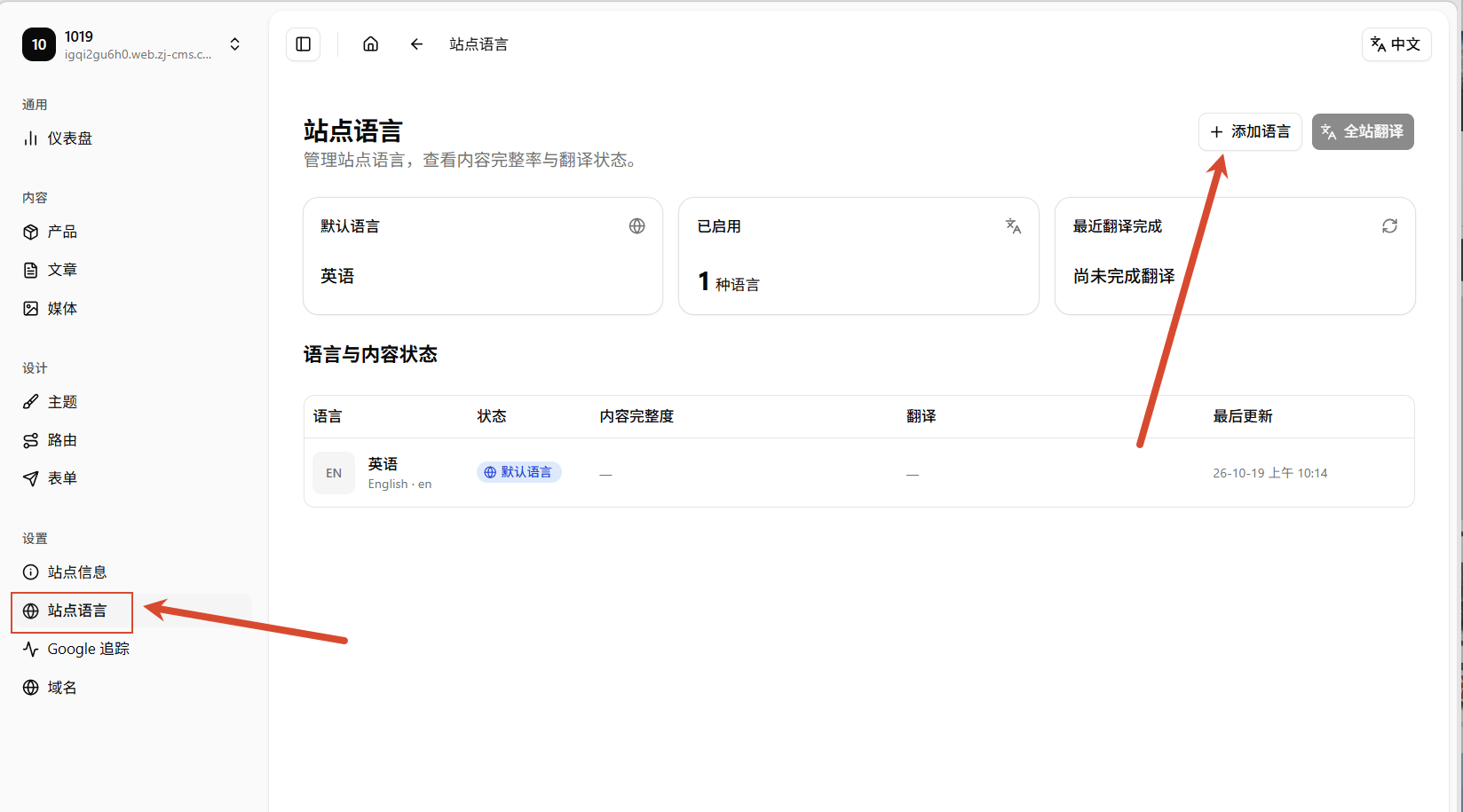
The page shows the default language, the number of enabled languages, and recent translation status. The default language is the base version of your original content.
For an established site, keep the current default language when possible. Changing it can alter the main content version and language signals of indexed pages, which may affect ongoing SEO processing. Consider it only when the business's primary language has genuinely changed, and review site content and search performance first.
3. Add only the languages you need
Find a language in the search box, select it, then select Add. For example, if Japan and South Korea are your target markets, select Japanese and Korean. Do not enable every language merely to make the list look larger.
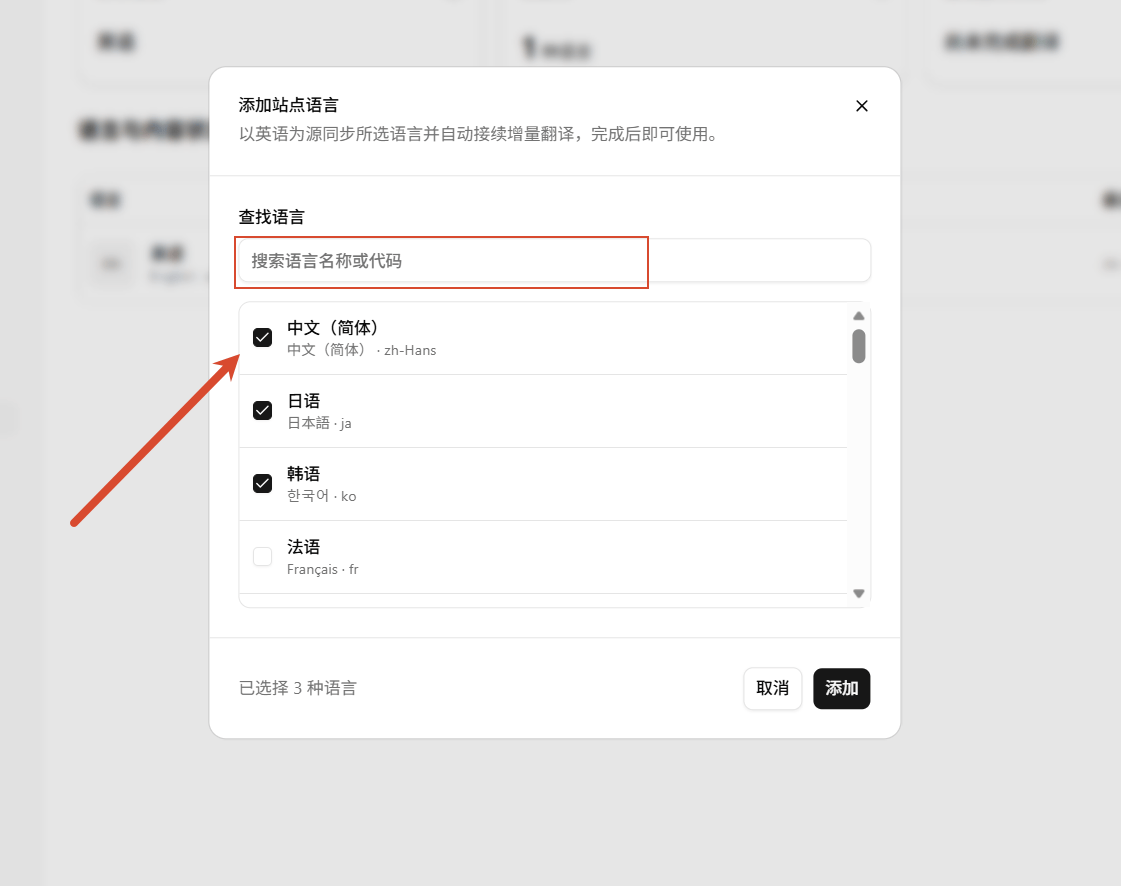
After you add languages, the system starts translating site content. More pages and content take longer. Speed also varies by AI model and provider.
Translation runs in the background, so your existing public site remains available. Wait until the new language status is complete before reviewing it; do not treat a language that is still translating as final for promotion or publishing.
4. Check translation progress
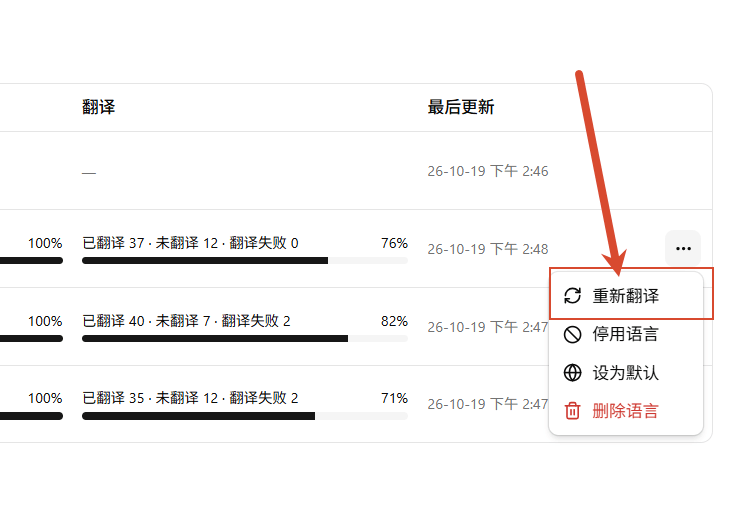
Return to Settings -> Site Languages to see each language's translation status and progress. In the Translation column, check the counts for translated, untranslated, and failed items. Any untranslated or failed items mean that language version is not complete yet.
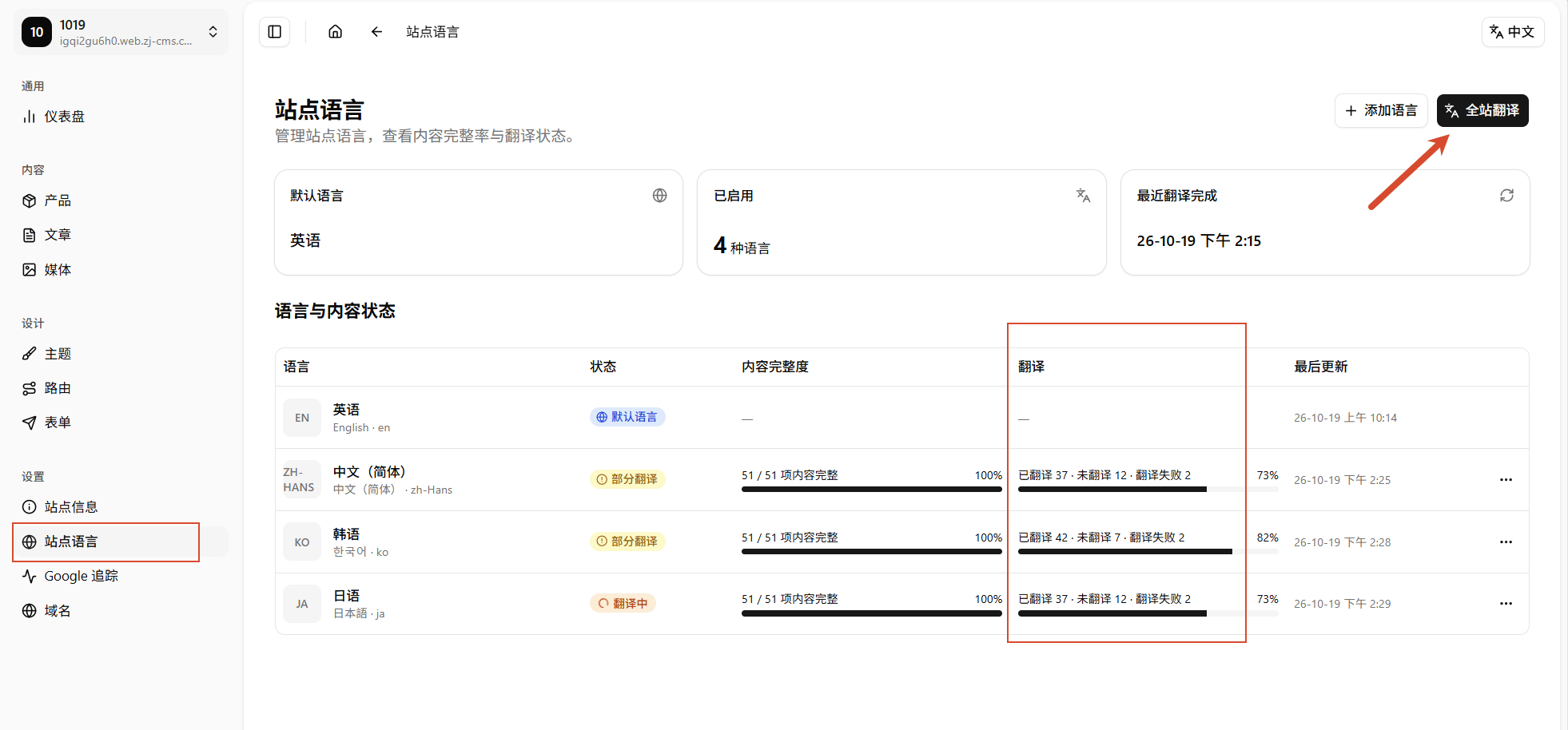
When the status is complete, open the public site and check that menus, pages, products, and articles switch correctly.
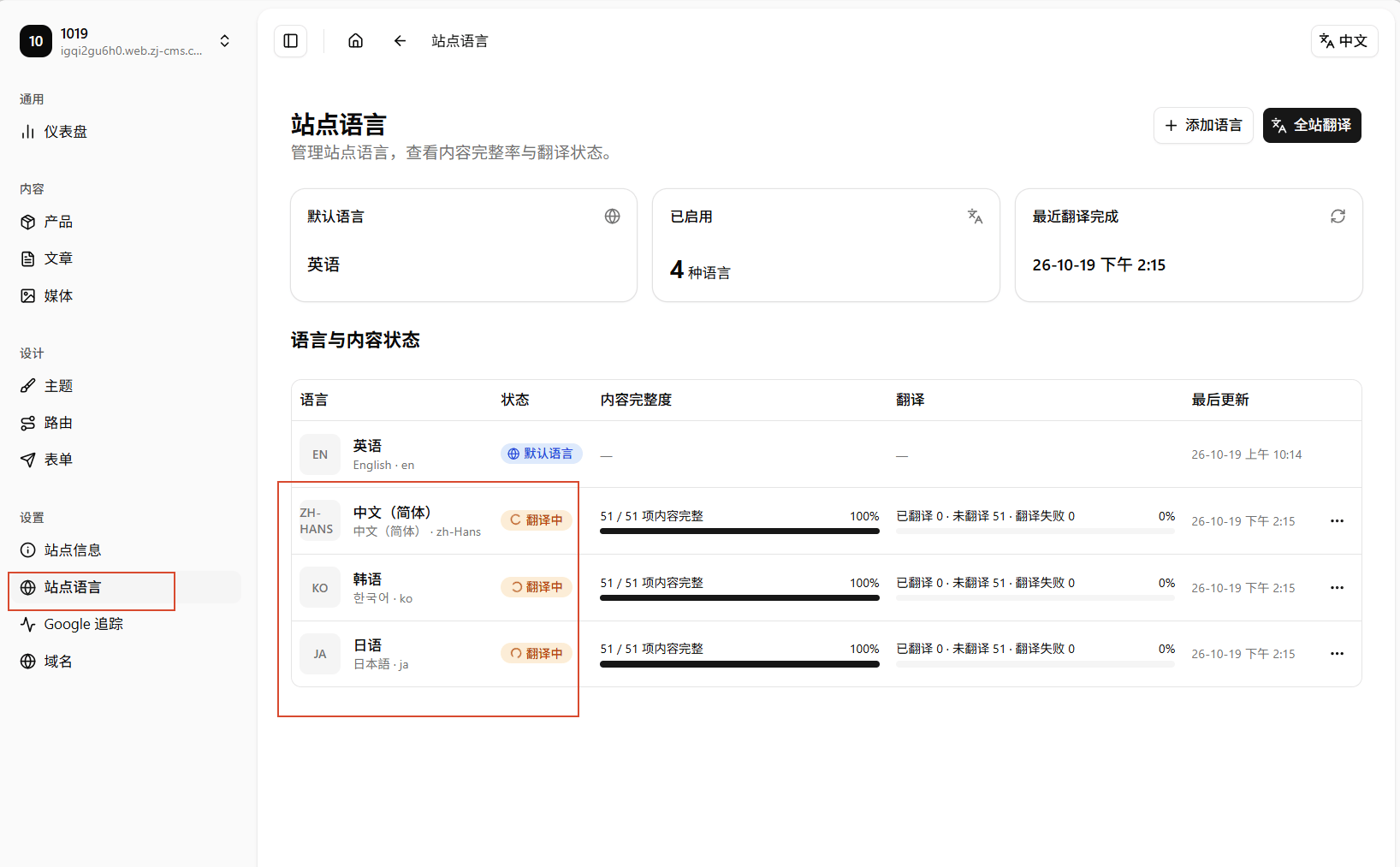
5. What if translation is incomplete?
If several languages are incomplete, select All-site translation in the upper-right to let the system continue translating them.
If only one language is incomplete, select ... at the end of that language's row, then select Retranslate. Wait for the progress to update before checking again; do not repeatedly start the same task while it is already running.
6. Switch languages on the public site
The public site has a language switcher in the upper-right. Switch through every language you added and confirm the matching content appears.
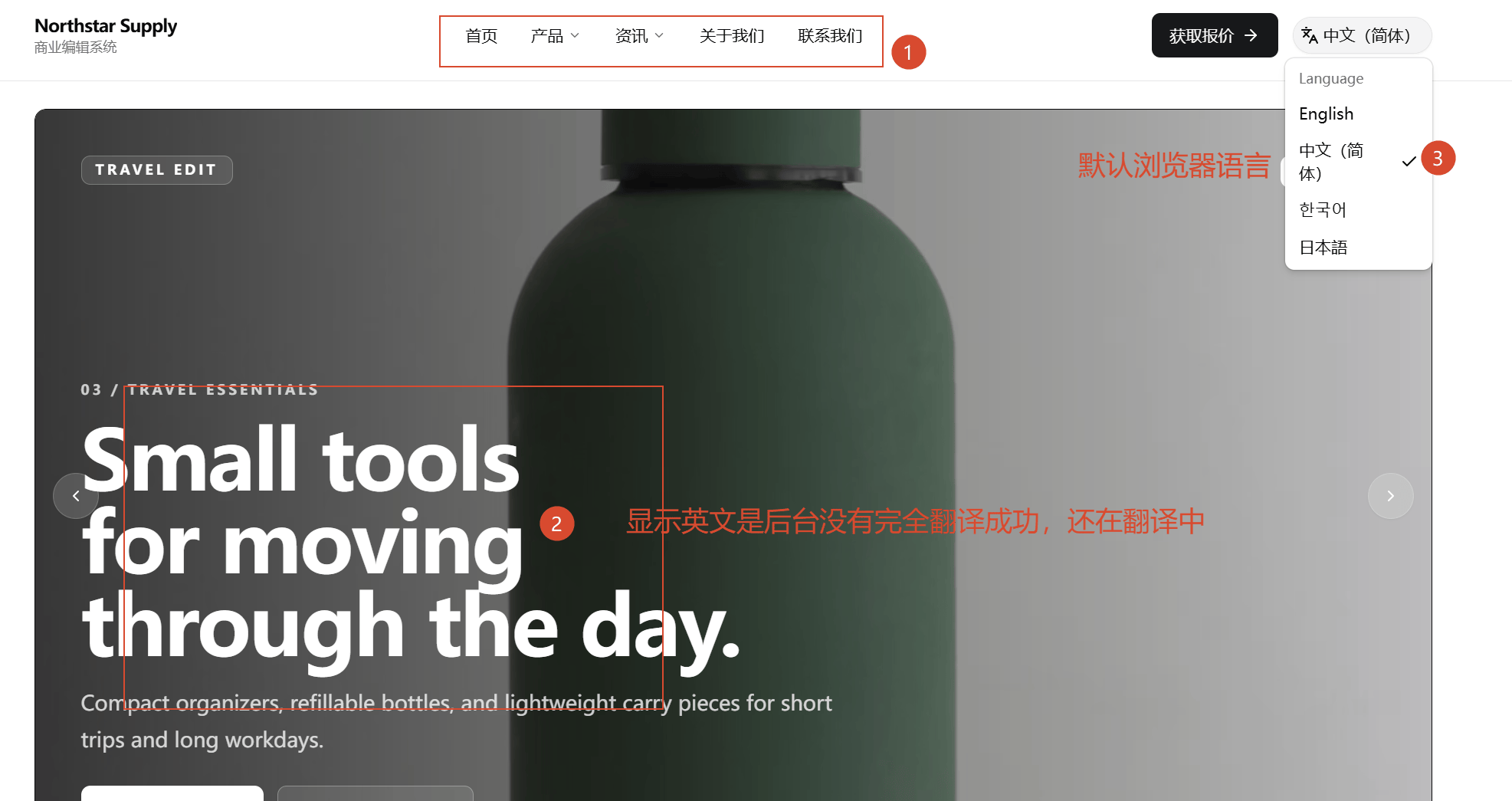
If you have switched to Chinese but some menu, heading, or body text is still English, the language switcher is working. The Chinese version is still being translated in the background and has not covered that content yet. Return to Site Languages to check progress, then use all-site translation or retranslate that one language when needed.
7. Why does my public site still open in Chinese?
This is usually not an error. The site first tries to match an enabled language to the visitor's browser language. A browser set to Chinese may open the Chinese version first. Visitors whose browsers use Japanese, Korean, or another enabled language will be shown that matching version first.
If a visitor's browser language is not enabled, the site falls back to the default language. You can still use the public site's language menu to switch manually and check every language version.
Common mistakes
| Common mistake | What to do instead |
|---|---|
| Enabling languages while source content is still changing often | Wait until the core content is nearly complete to reduce retranslation and review. |
| Adding a language before connecting AI | Connect an AI API and confirm the test succeeds first. |
| Enabling every available language | Choose only the languages for your real target markets. |
| Changing the default language only to try it | Avoid it unless necessary, so existing SEO language signals stay stable. |
| Checking a new language while it is still translating | Wait for the status to finish, then check each page. |
| Switching to Chinese but still seeing English content | Check untranslated and failed counts; use all-site translation or retranslate that language when needed. |
| Seeing Chinese in a Chinese browser and assuming translation failed | This is browser-language matching. Use the public language menu to check manually. |
After translation completes, check product specifications, contact details, forms, and menus in every language version. AI can create a first translation, but you should still confirm critical specifications, brand names, and contact details.