Contact Links: Tap to Call and Email
💡 In this guide, you will make phone numbers and email addresses clickable. On mobile, visitors can tap a phone number to call and tap an email address to write an email. Estimated time: 3 minutes.
Use this for footers, contact pages, homepage contact sections, and anywhere else your site shows contact details.
If you also need a bottom-right WhatsApp entry, read WhatsApp Floating Button.
Find the page first
Path: AllinCMS Workspace site list → Target site → Enter Admin → Themes → Current theme pages → Home or target page


Overview
1. Select the Contact Text
Open the page editor and find the email or phone text. Click the text or the contact component. The settings panel appears on the right.
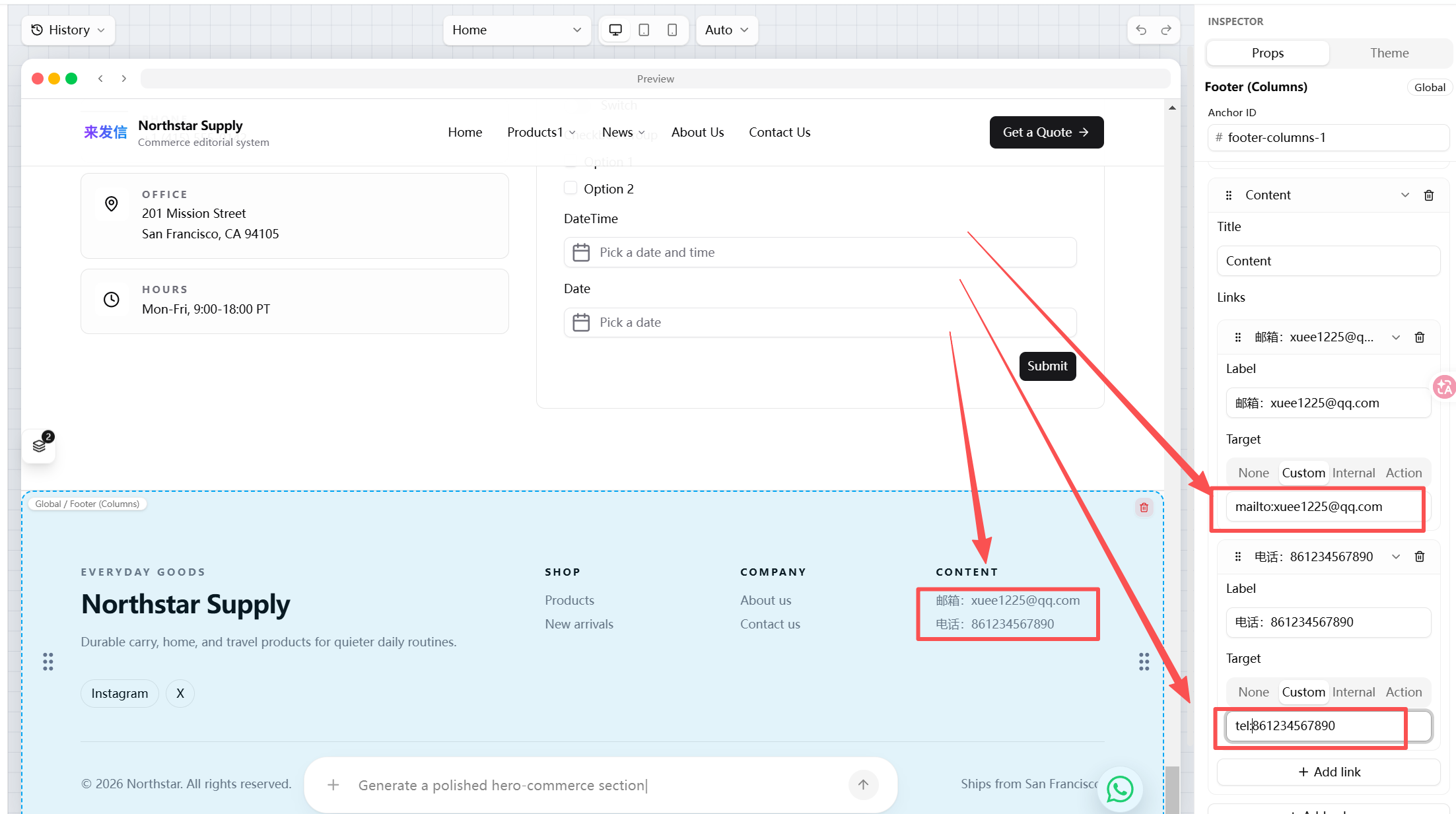
Follow the red arrows and red boxes in the screenshot. The key area is the Target input on the right.
2. Set One-Tap Email
For the email item, enter mailto: plus the email address.
Example:
mailto:xuee1225@qq.com
Replace it with your own email address. If your email is sales@example.com, enter:
mailto:sales@example.com
3. Set One-Tap Call
For the phone item, enter tel: plus the phone number.
Example:
tel:861234567890
Replace it with your own phone number. Use only numbers and the required country code so phones can recognize it reliably.
4. Notes
The colon in mailto: and tel: must be a normal English colon. Do not add spaces around it.
Common mistakes:
| Scenario | Wrong | Correct |
|---|---|---|
mail to:xuee1225@qq.com | mailto:xuee1225@qq.com | |
mailto: xuee1225@qq.com | mailto:xuee1225@qq.com | |
| Phone | tel: 861234567890 | tel:861234567890 |
| Phone | tel:861234567890 | tel:861234567890 |
The last wrong example uses a Chinese colon. Use the normal English colon :.
5. Test on Mobile
After saving, open the website on a phone and test both links:
- Tap the email. It should open the mail app.
- Tap the phone number. It should open the dialer.
- If nothing happens, check whether
mailto:/tel:is misspelled, whether spaces were added, or whether the colon is the wrong type.
Next
WhatsApp Floating Button - add a WhatsApp contact entry to the bottom-right corner.
📌 Menu Order - after contact links are ready, place important entries where visitors can find them.