Add a Popup Form
Tip: In this guide, you will add a popup form and make a button open the correct form. Estimated time: 6 minutes.
Popup forms are useful for Get a Quote, Contact Us, and Request Sample buttons. Before starting, create the form in Forms in the admin. If you need to edit fields, dropdown options, or submit text first, read Form Editor.
If notification email is not set, or normal form submissions are not received, do not add many popup forms yet. Configure notification email in Site Settings first.
Find the page first
Path: AllinCMS Workspace site list → Target site → Enter Admin → Themes → Current theme pages → Home or target page


Overview
1. Add the Popup Form Module
In the page designer, find Form and choose Contact Form (Split).
You can also enter this AI instruction:
Add a popup form
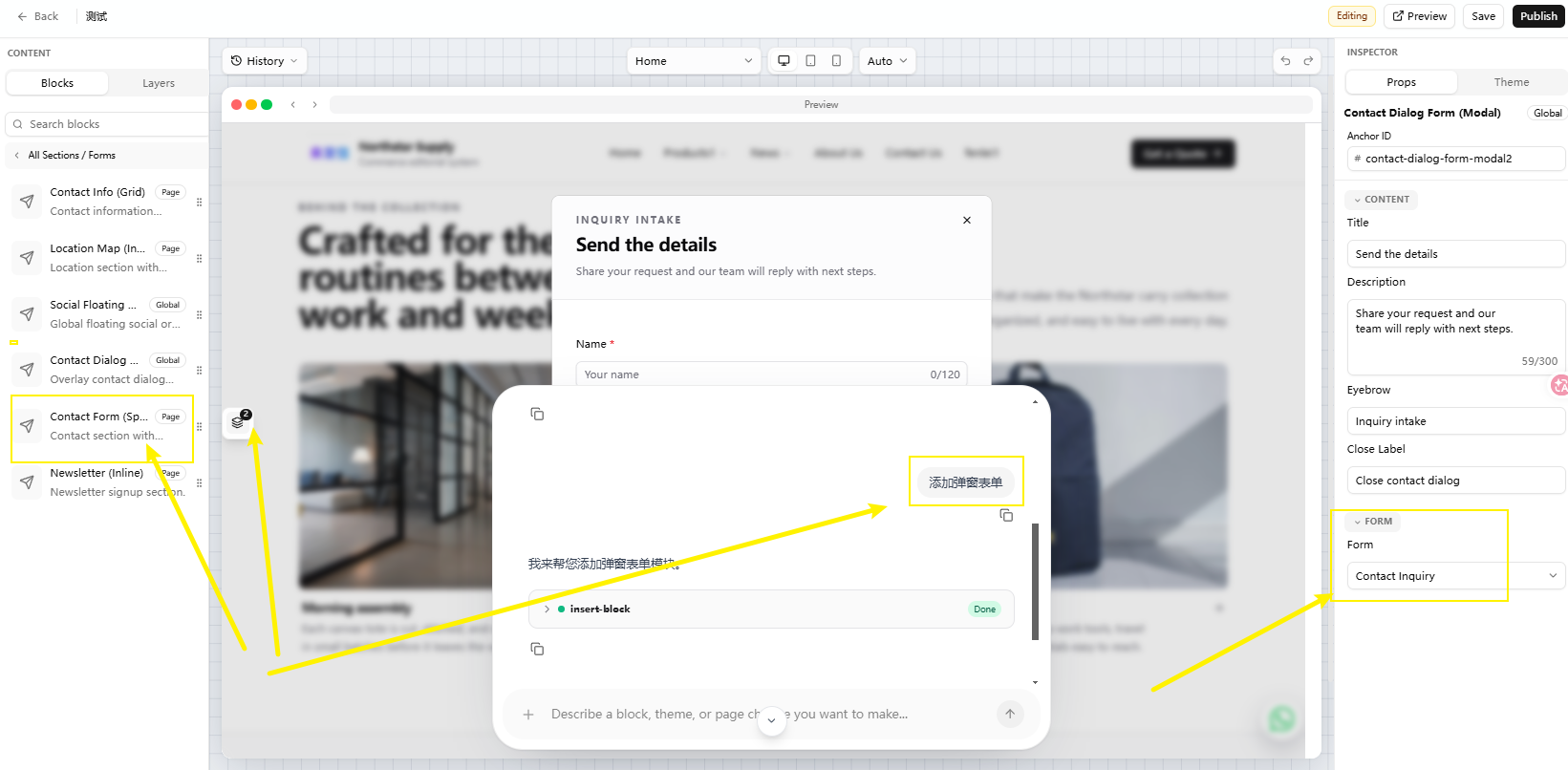
If the popup opens but looks empty, it usually means no form has been selected yet.
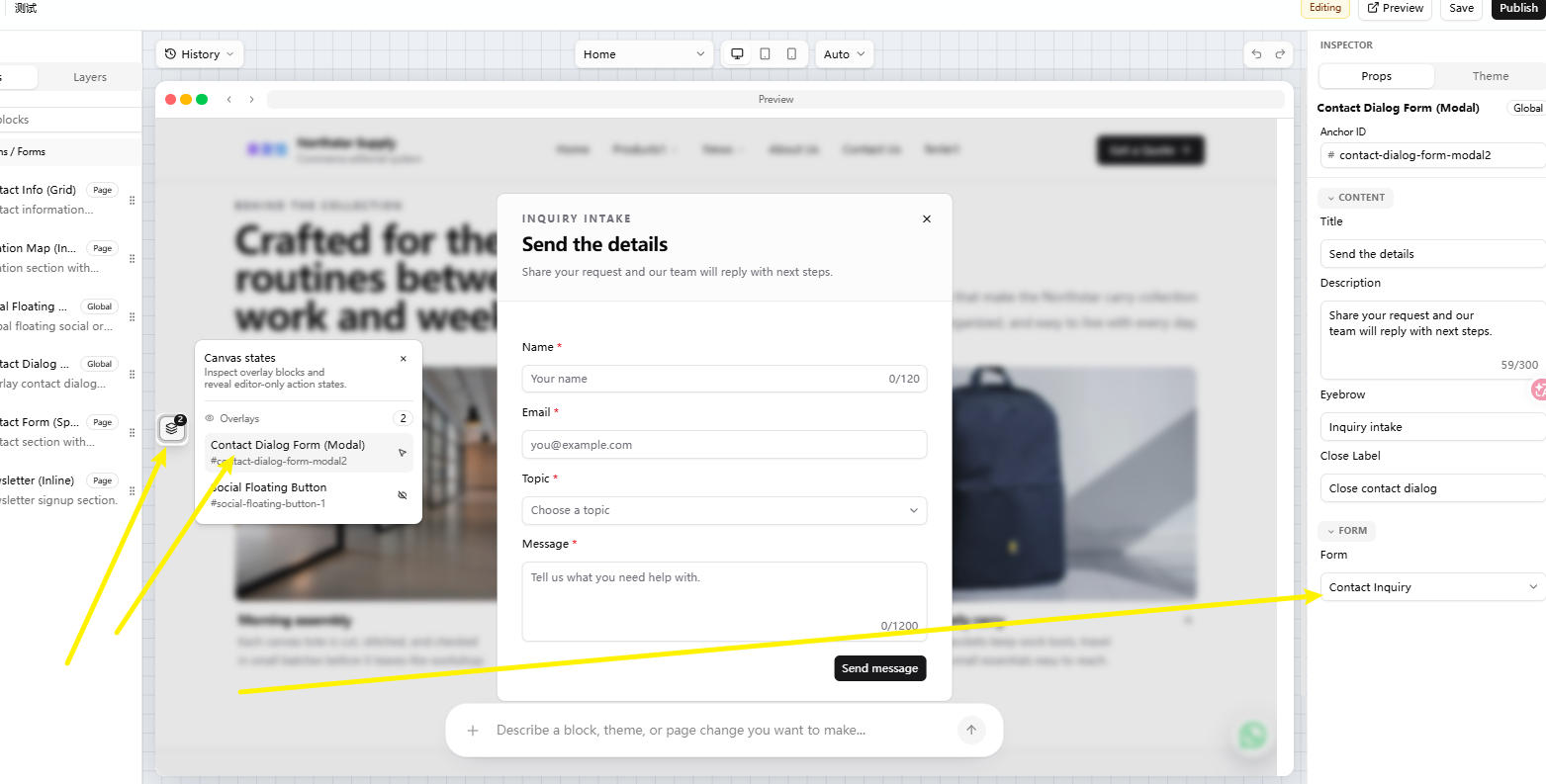
Select the popup layer, then choose the form in the right-side Form / Props panel. The form must already exist in Forms in the admin. After you choose it, the name, email, message, and submit fields will appear inside the popup.

Start with one main popup per page. Do not place many popups on one page at the beginning. First make the main Get a Quote or Contact Us button open the form.
2. Set the Button Action
First make sure the form already exists in Forms. Field content is handled in Form Editor; this page only makes the button open the popup.
Then select the button or layer and configure the right-side properties:
| Field | Value |
|---|---|
CTA Target / Target | Action |
| Action type | The popup action |
| Form | The form to open |
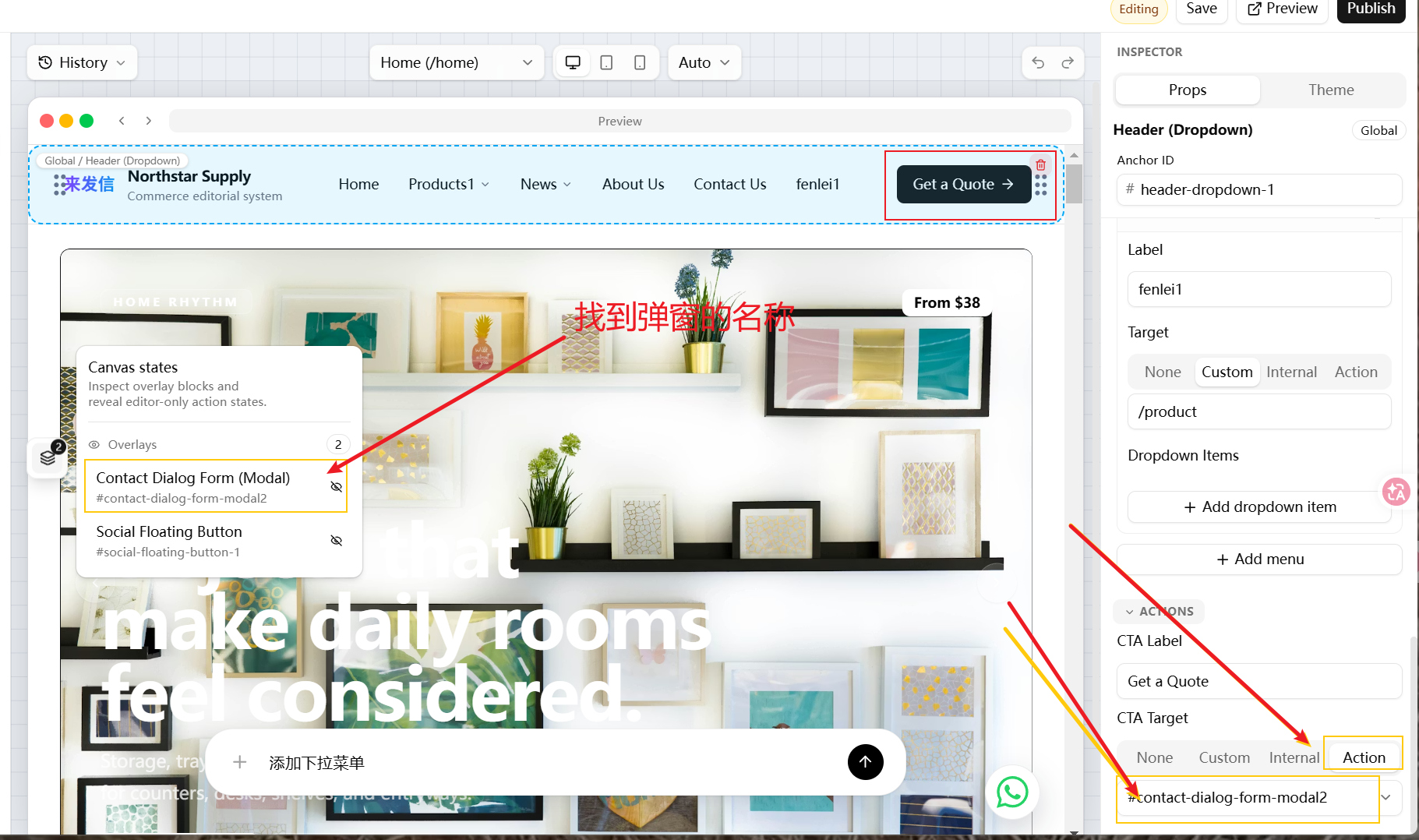
3. Select the Form
Click the popup layer, then choose the specific form in the right-side Props.
The form must be created in Forms first. Otherwise it may not appear in the dropdown.
4. Open the Popup From Product or Post Body Text
Yes. Text links inside a product detail page or post body can open the popup form directly. The requirement is that the frontend page already contains the popup form module, and the popup has its own Anchor ID.
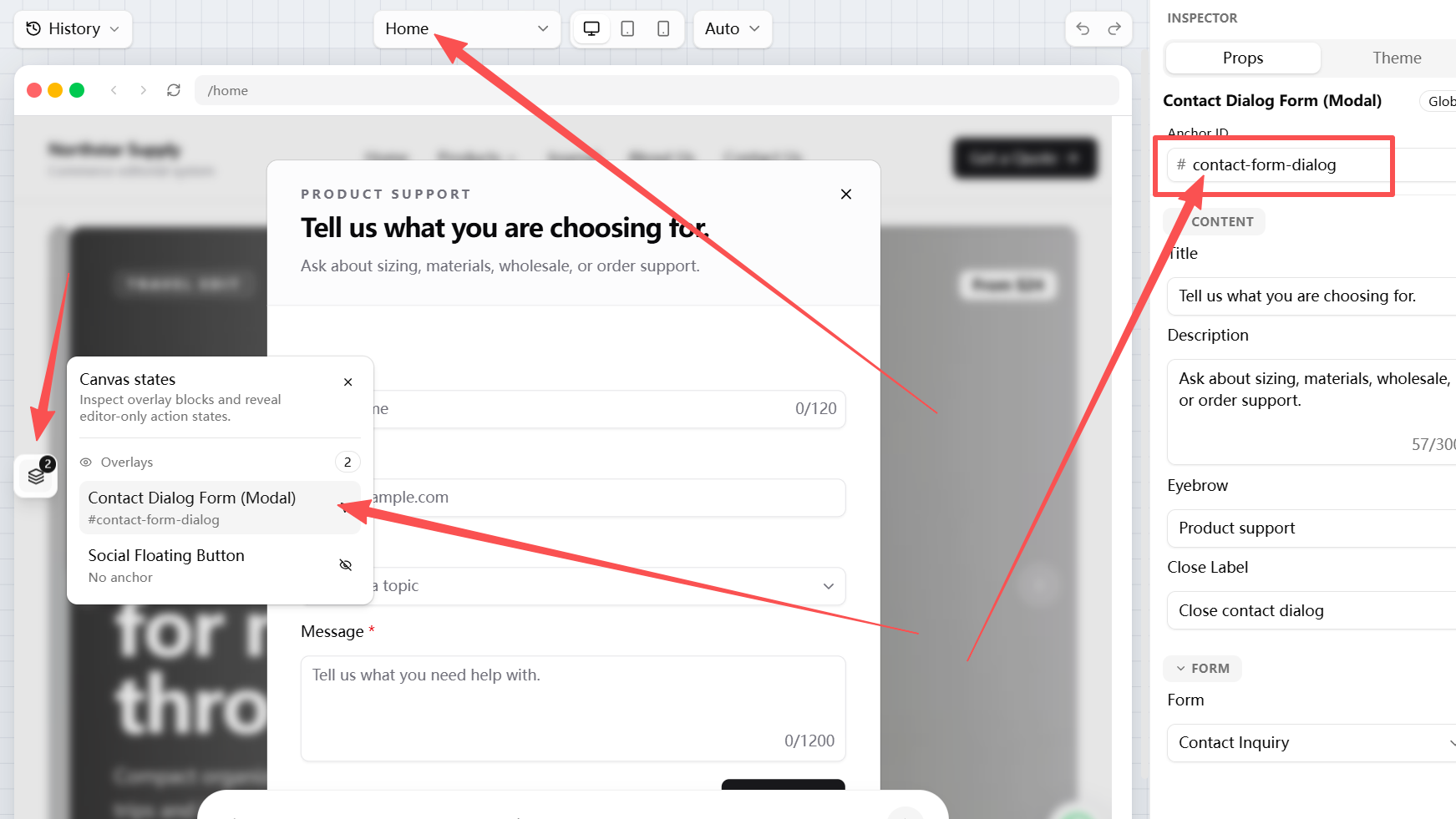
First find the popup ID in the page designer:
- Open the page that uses this popup, such as
Homeor the product/post detail template. - Click the layer or state button on the left, then find
Canvas statesorOverlays. - Select the popup layer, such as
Contact Dialog Form (Modal). - In the right-side
Propspanel, checkAnchor ID, for examplecontact-form-dialog.
Then go back to the product or post editor:
- Select the text visitors should click, such as
Get a Quote,Contact Us, orRequest a Quote. - Click the link button in the editor.
- Enter
#plus the popup ID, for example:
#contact-form-dialog
- Save and publish, then open the frontend product detail or post detail page to test it.
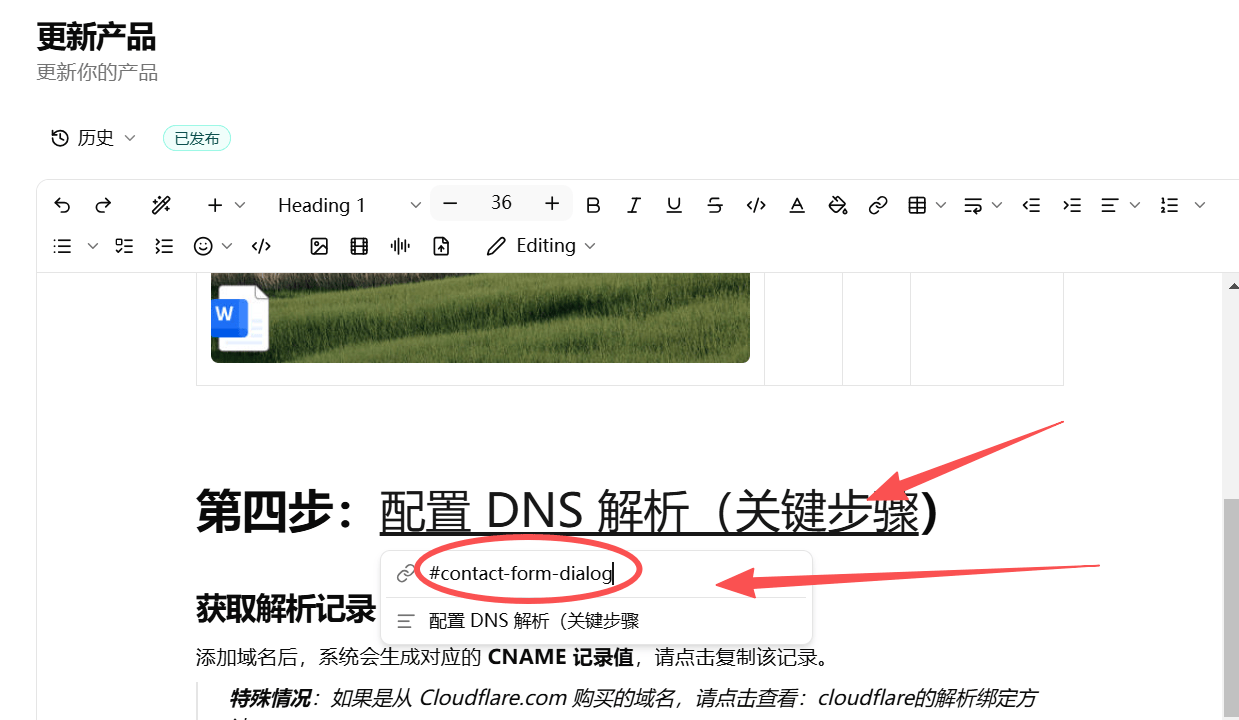
Find the popup Anchor ID first, then link body text to #id. If the ID is contact-form-dialog, enter #contact-form-dialog.
If the product detail page or post detail page does not include this popup module, clicking #contact-form-dialog will not open the form. Add the popup to the relevant page or detail template first.
5. Preview and Test
After setup:
- Click the button and confirm the popup opens.
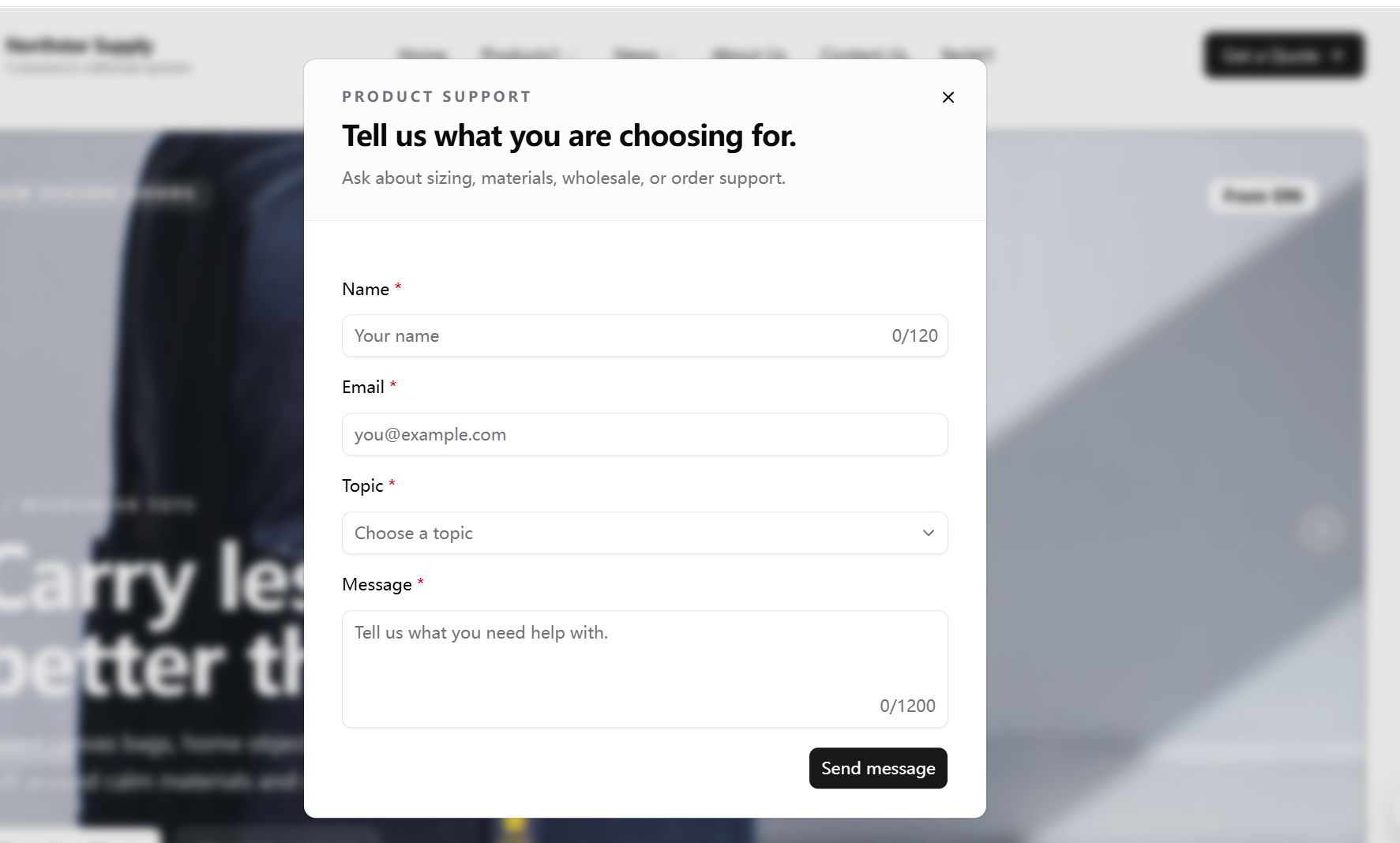
- Confirm the popup shows the correct form.
- If you also added a
#idlink in body text, open the frontend product or post detail page and click that text. - Submit one test entry.
- Check the form admin or notification email for the submission.
The popup opening does not mean submissions are received. Submit one test yourself.
Pitfalls
| Mistake | Result | How to avoid it |
|---|---|---|
| Form not created first | No form to select | Create it in Forms first |
| Popup opens empty | No Form is selected on the right side | Select the popup layer, then choose a form in Props |
Target is not Action | Button does not open popup | Set button action to Action |
| Popup added but button not linked | Visitors cannot open it | Configure both popup and button |
Body link misses # | Product or post text does not open the popup | Use a link like #contact-form-dialog |
| Current page has no popup module | The #id target does not exist | Add the popup to the matching page or detail template first |
| Notification email not tested | Inquiries may not be received | Submit one test yourself |
Next
Site Settings - configure notification email so form notices can be received.