Top Navigation: Normal Menus and Dropdown Menus
💡 In this guide, you will add normal menus and dropdown menus, then connect them with
Internalpage or product category links. Estimated time: 5 minutes.
A normal menu is a single top-level item, such as Home, About Us, or Contact Us.
A dropdown menu is a parent item with multiple child links, such as product categories under Products. For a first website, keep only one product dropdown and use normal menus for the other important pages.
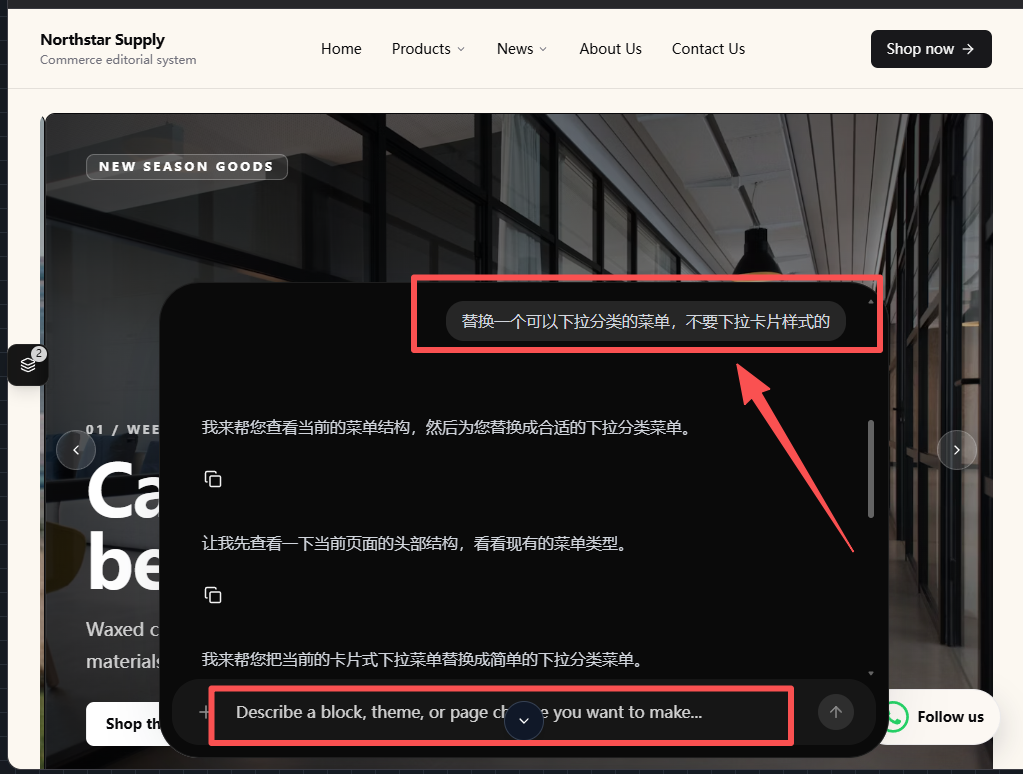
If the template does not already have a dropdown menu, do not just edit the labels. Enter this AI prompt first:
Replace it with a menu that supports dropdown categories, not a dropdown card style.
Let the system create the right menu structure, then set the links.
Find the Entry First
Path: AllinCMS Workspace site list → Target site → Enter Admin → Themes → Current theme pages → Home or target page


Overview
1. Select the Navigation
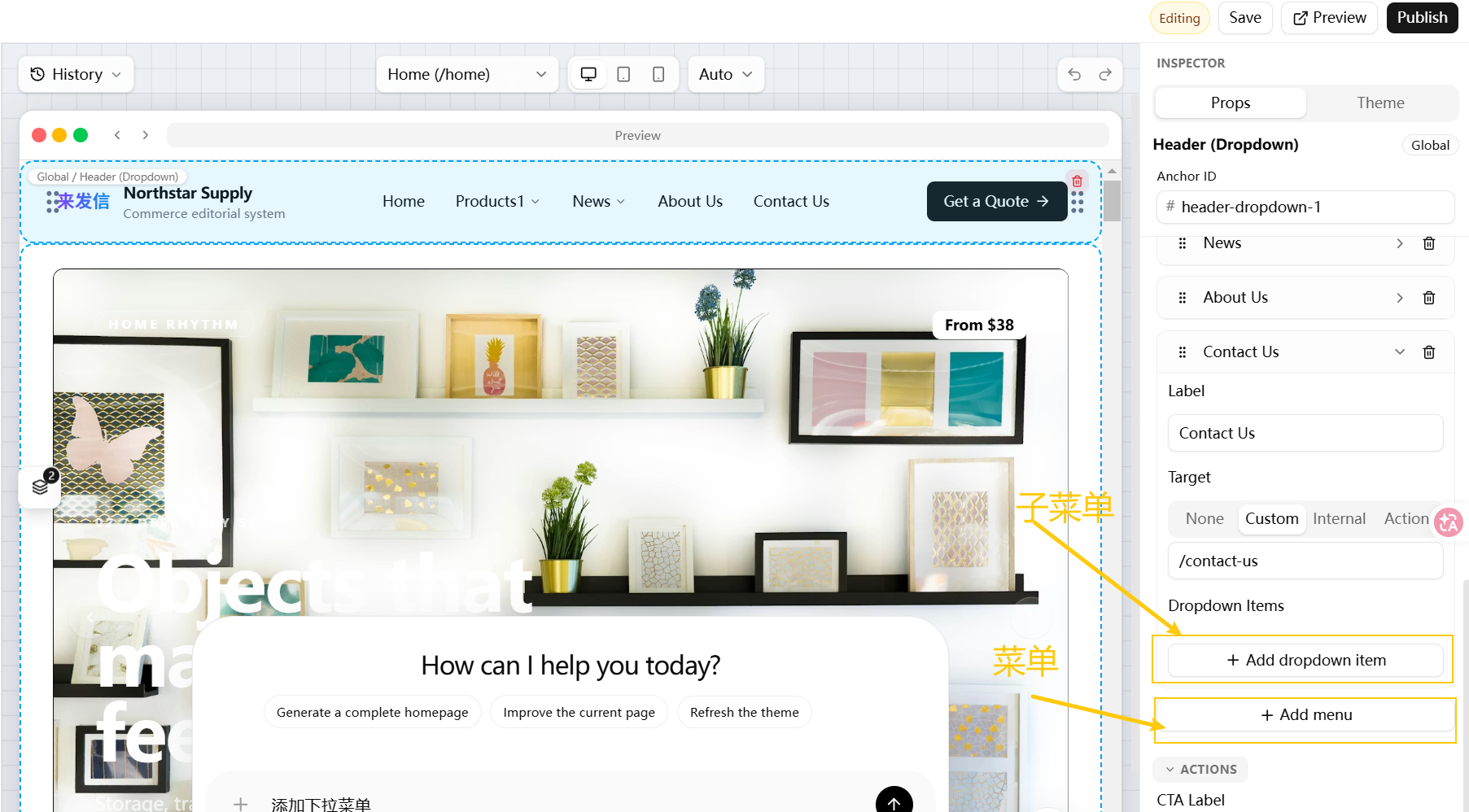
Open the page designer and click the top navigation area or menu component. The right-side Props panel appears after selection.
2. Add a Normal Menu
In Props, find + Add menu.
Use a normal menu for important standalone pages, such as:
Home
About Us
Contact Us
OEM
After adding it, fill in these two parts:
| Field | What to enter |
|---|---|
Label | The menu text, such as Contact Us |
Target | Choose an existing internal page |
Correct path for a page menu:
Target -> Internal -> Page -> Target page

For example, if OEM is not shown in the page dropdown, the page may not exist yet. Create it in Create a Page, then come back and select it.
3. Add a Dropdown Menu
In Props, find + Add dropdown item.
Use a dropdown to group similar destinations. The most common case is product categories:
Products
  - Wireless Earphones
  - Bluetooth Speakers
  - Smart Watches
Correct path for product category links:
Target -> Internal -> Products -> Product Category -> Target category

If a dropdown item points to a normal page, such as About Us, Contact Us, or OEM, still use the page path:
Target -> Internal -> Page -> Target page
When you have many product categories, keep them under the Products dropdown. Keep the top-level menu to 4 to 6 items so visitors can scan it quickly.
4. Recommended Menu Structure
For the first round, use a simple structure like this:
| Menu | Type | Link selection |
|---|---|---|
Home | Normal menu | Internal -> Page -> Home |
Products | Dropdown menu | Child items use Internal -> Products -> Product Category -> Target category |
About Us | Normal menu | Internal -> Page -> About Us |
Contact Us | Normal menu | Internal -> Page -> Contact Us |
News / Blog | Optional normal menu | Internal -> Page -> Posts |
If product categories are not ready yet, read Product Categories first. After categories and products are ready, come back and update the top menu.
5. Check the Frontend
After setup, preview or publish the page and check:
- The new menu item appears.
- The dropdown expands when hovered or clicked.
- Each menu link opens the correct page.
- The mobile menu expands and opens the correct pages.
Desktop dropdowns are not enough. Switch to mobile preview and make sure the menu is not crowded and each item opens correctly.
Pitfalls
| Mistake | Result | How to avoid it |
|---|---|---|
| Label entered but no target selected | Click does nothing | Set both Label and Target |
Internal selected but the final page or category is missing | The click does not reach the right page | Keep selecting until the last dropdown is filled |
| A category was created but the top menu was not updated | The frontend menu still shows the old item | Edit the Header menu manually |
| Too many dropdown items | Visitors cannot scan it | Show only main categories |
| Only testing desktop | Mobile menu may be hard to use | Test on mobile too |
Next
📌 Redirect Links - read this if you also need button, product, or post link setup.