Video Section and Image Gallery
Tip: In this guide, you will add video sections and image galleries, or insert videos into product and article content. Estimated time: 5 minutes.
Video sections work well for promotional videos, factory introductions, and product demos. Image galleries work well for product images, cases, certificates, and site photos.
Do not place empty modules when you do not have clear images or video. Finish the page with text and product content first, then add galleries and videos when material is ready.
Before uploading gallery images, read Image Guidelines. Images with similar ratios make galleries look cleaner.
Find the page first
Path: AllinCMS Workspace site list → Target site → Enter Admin → Themes → Current theme pages → Home or target page


The entry above is for page modules. To insert a video into product or article content, open that item's editor and follow section 2 below.
Where to Use Them
| Module | Good pages | First-round suggestion |
|---|---|---|
| Video Section | Home, About, product detail, Cases | Prepare a YouTube video URL first |
| Image Gallery | Cases, About, factory, certificates, product detail | Start with 6 to 12 clear images |
1. Add a Video Section
There are two ways to add a video module:
- Enter this AI instruction:
Add a video module - Find
Media->Video Sectionin the module library and drag it onto the page
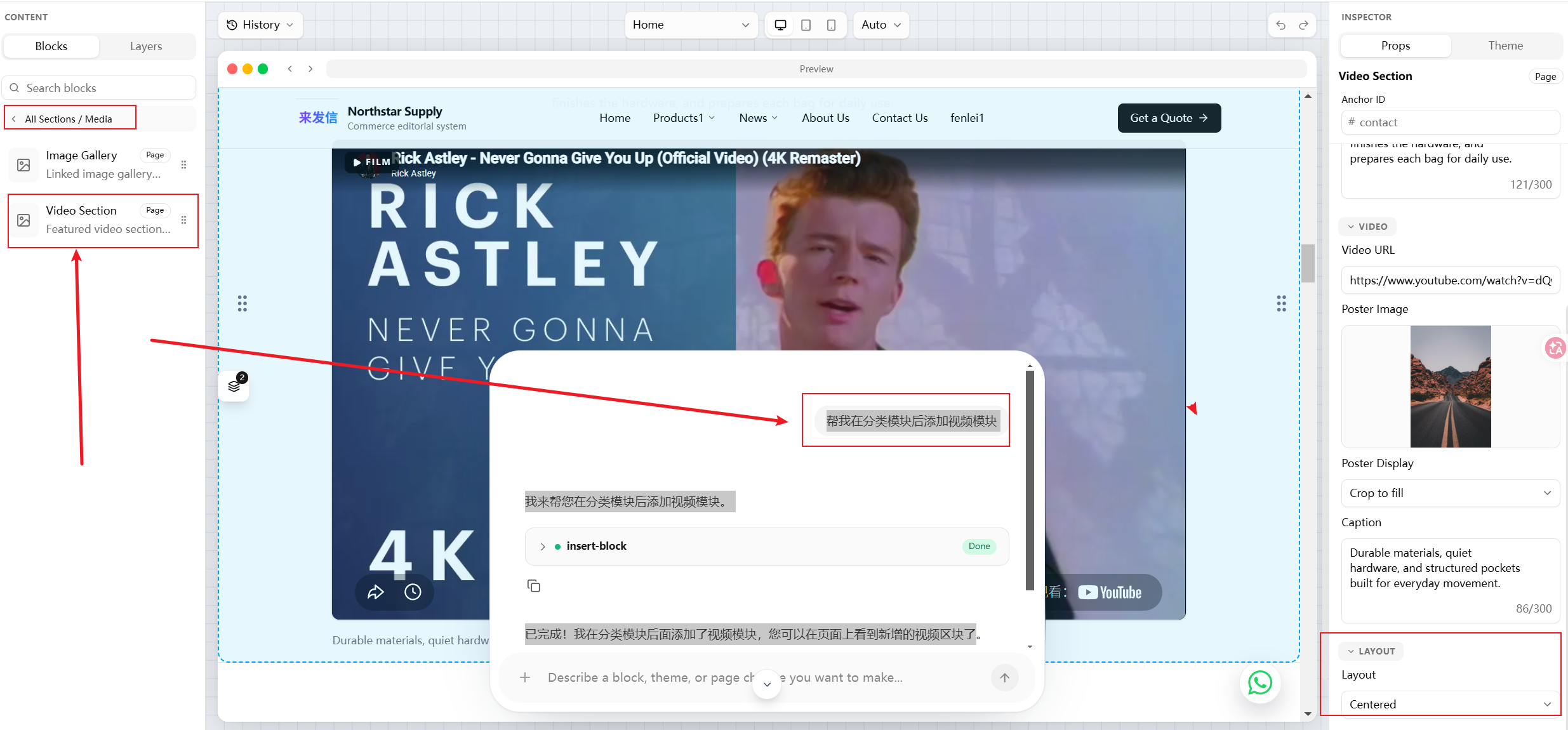
After adding it, choose Split in the right-side settings to create a side-by-side video and text layout.

The current video module only supports YouTube links. Do not use the old workflow of uploading a local video file or selecting a video from the media library.
Set the video link in this order:
- Select the video area on the page.
- Switch to
URLat the top of the dialog. - Keep the type as
Video, paste the YouTube link, wait for the preview, then clickConfirm.

Good uses:
- Video on the left, introduction text on the right.
- Selling points on the left, product demo video on the right.
- Home page, About page, or product detail sections.
Do not show only a video. Add 2 to 3 sentences explaining what the video shows and why visitors should watch it.
2. Insert a Video into Product or Article Content
Both product and article content editors support video insertion. Prepare a YouTube video link first.
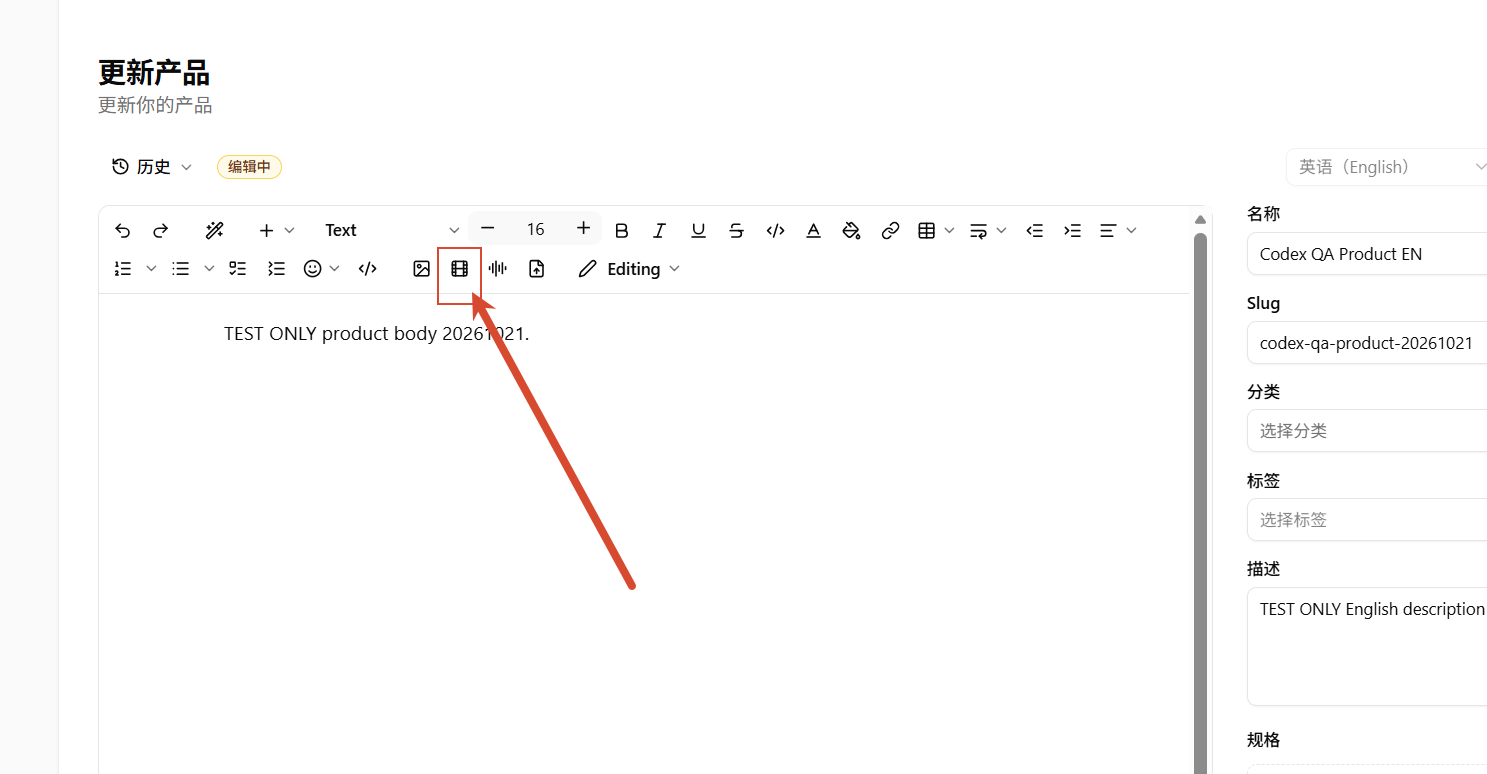
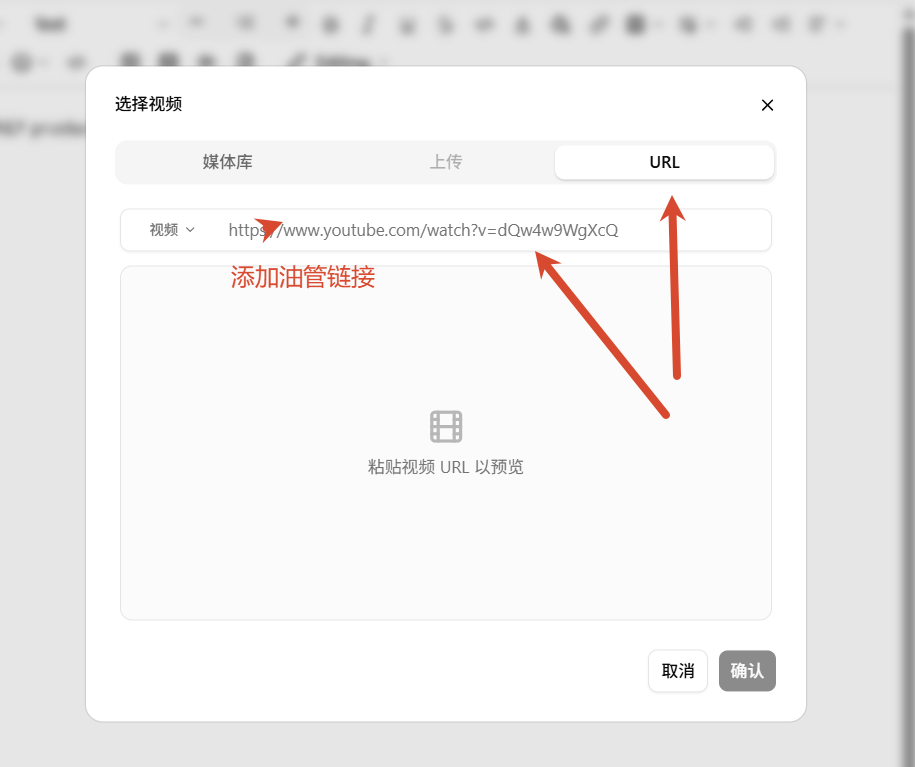
After inserting the video, save or publish the content. Open the product or article detail page on your website and confirm that it plays. If no preview appears, check that the link is complete and the video is publicly accessible.
3. Add an Image Gallery
There are two ways to add an image gallery:
- Enter this AI instruction:
Add an image gallery module - Find
Media->Image Galleryin the module library and drag it onto the page
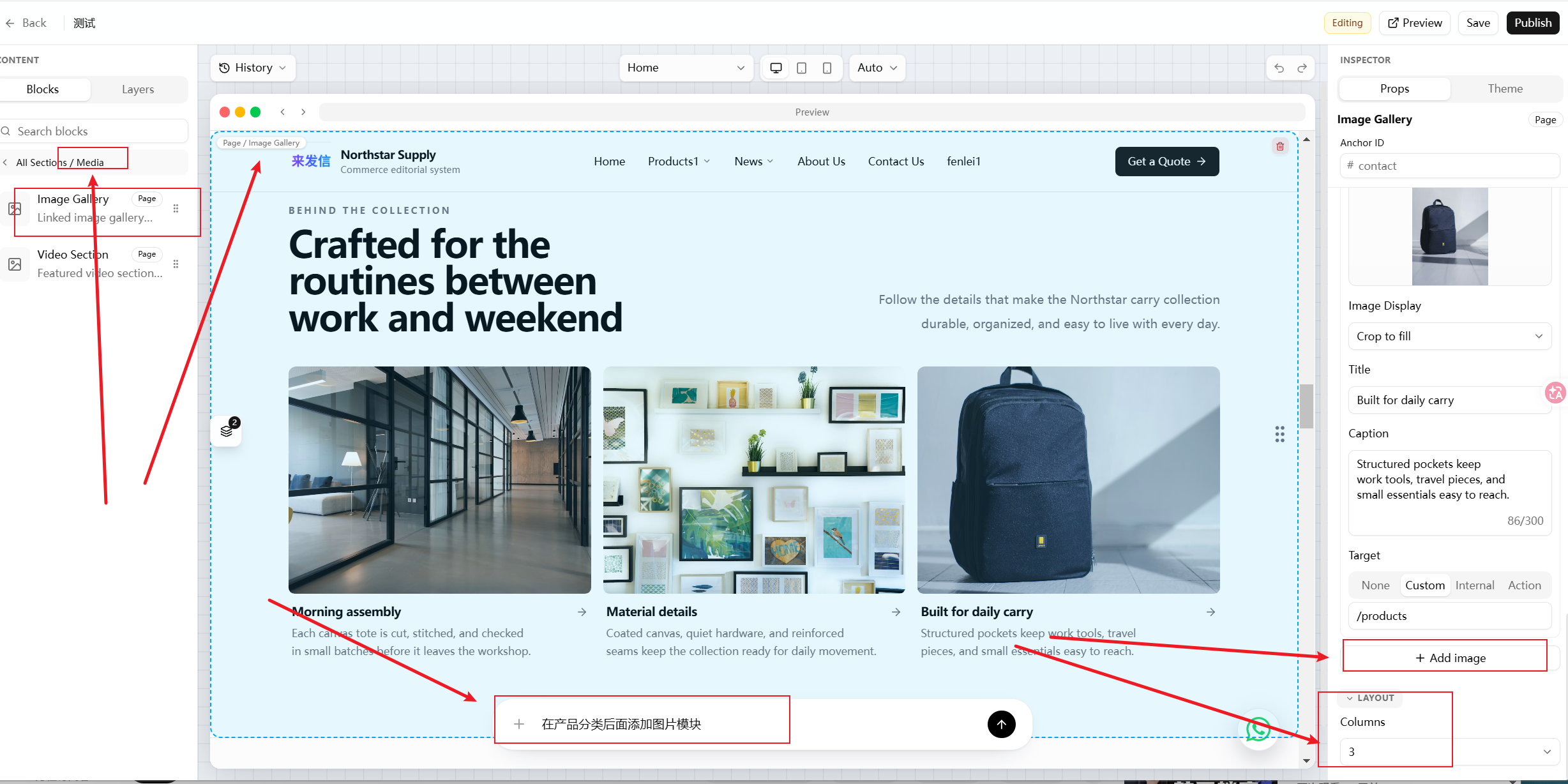
Common gallery settings:
| Setting | Purpose |
|---|---|
| Images per row | Controls how many images appear in one row |
| Image crop mode | Controls whether images fill the frame or show fully |
| Link target | Opens a page when an image is clicked |
| Title / description | Shows or hides image text |
First-round suggestions:
- Start with 6 to 12 clear images.
- Keep image ratios consistent within the same gallery.
- Add a simple title or description when helpful.
- If images are mixed, split them into multiple galleries.
4. Pre-Launch Checks
Before publishing, check:
- The video uses a YouTube link.
- The link previews and plays correctly after pasting.
- Product or article changes have been saved or published, and video playback works on the public detail page.
- Mobile layout stacks video and text properly.
- Images are clear and not over-cropped.
- Image links open the correct pages.
- Titles and descriptions are hidden if they make the page crowded.
Pitfalls
| Mistake | Result | How to avoid it |
|---|---|---|
| Uploading a local video or using a non-YouTube link | The video may not preview or play | Switch to URL and use a YouTube video link |
| Image ratios are inconsistent | Gallery looks messy | Use consistent image sizes or crop mode |
| Adding modules without media | Page looks empty | Add modules after real material is ready |
| Mobile not checked | Mobile layout may break | Preview on a phone before publishing |
Next
Image Guidelines - if image display is unstable, check image size and cropping first.