Add and Edit a WhatsApp Floating Button
Tip: In this guide, you will add a WhatsApp floating button to the bottom-right corner so visitors can contact you with one tap. Estimated time: 3 minutes.
A WhatsApp floating button is useful across the site. Visitors can contact you directly while browsing products, posts, or the homepage.
Use country code plus phone number. Do not add spaces, plus signs, or brackets. For example: 861234567890.
Find the page first
Path: AllinCMS Workspace site list → Target site → Enter Admin → Themes → Current theme pages → Home or target page


Overview
1. Add It With AI
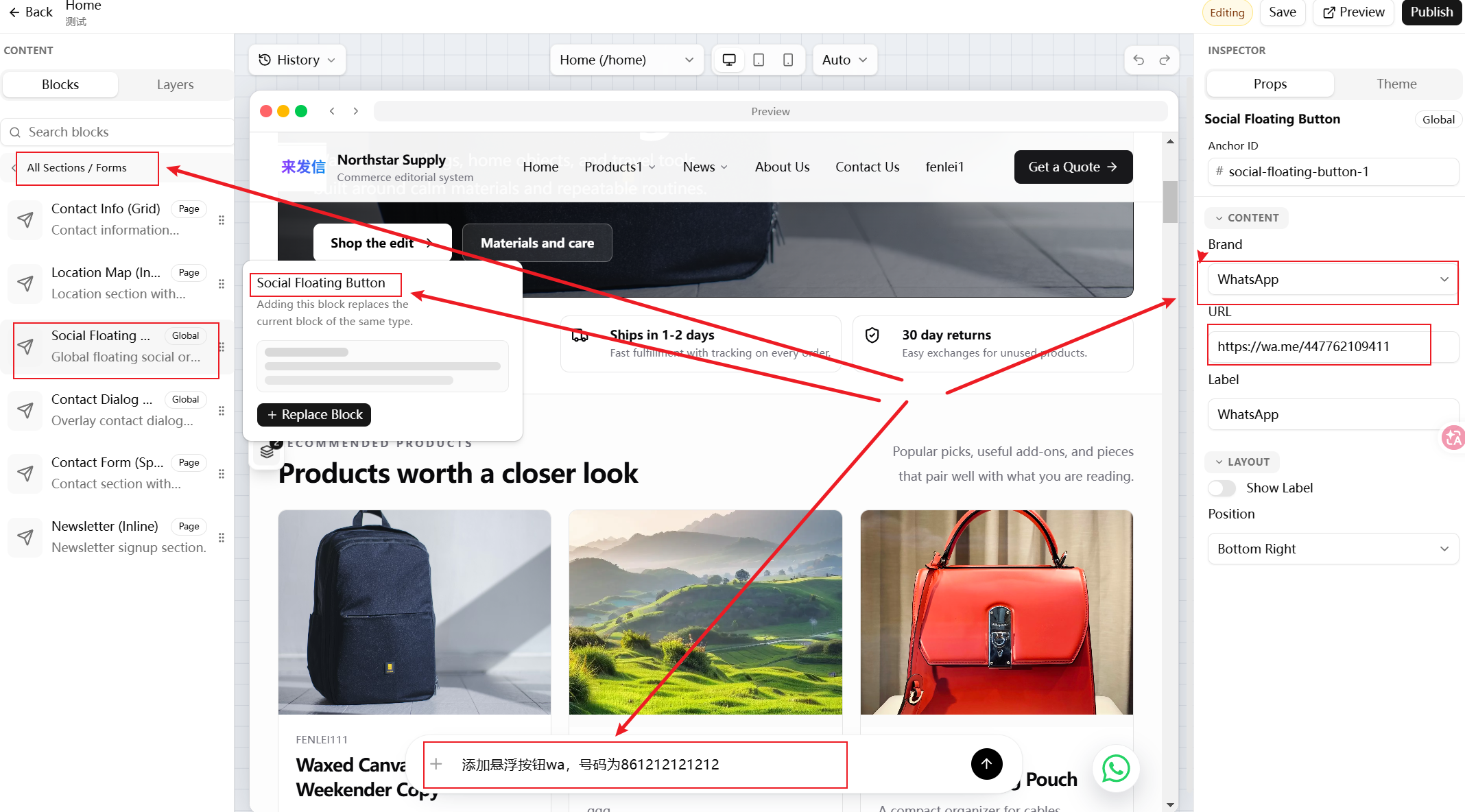
In the page designer, enter this AI instruction:
Add a WhatsApp floating button, number is 861234567890
Replace 861234567890 with your own WhatsApp number.
After the button is added, check these fields in the right properties panel:
| Field | Value |
|---|---|
Brand | WhatsApp |
URL | https://wa.me/your-number |
Label | WhatsApp or Contact us |
Position | Usually Bottom Right |
2. Add It Manually
If you do not use AI:
- Open the page designer.
- Select
Blocksin the left panel. - Open
All Sections / Forms. - Find
Social Floating Button. - Drag it into the page or add it.
- Set
BrandtoWhatsApp. - Enter your WhatsApp link in
URL.
The WhatsApp link format is:
https://wa.me/861234567890
Replace 861234567890 with your own number.
If the page already has a WhatsApp floating button, do not add another one. Select the existing button and update the number.
3. Edit an Existing WhatsApp Number
If the page already has a WhatsApp icon:
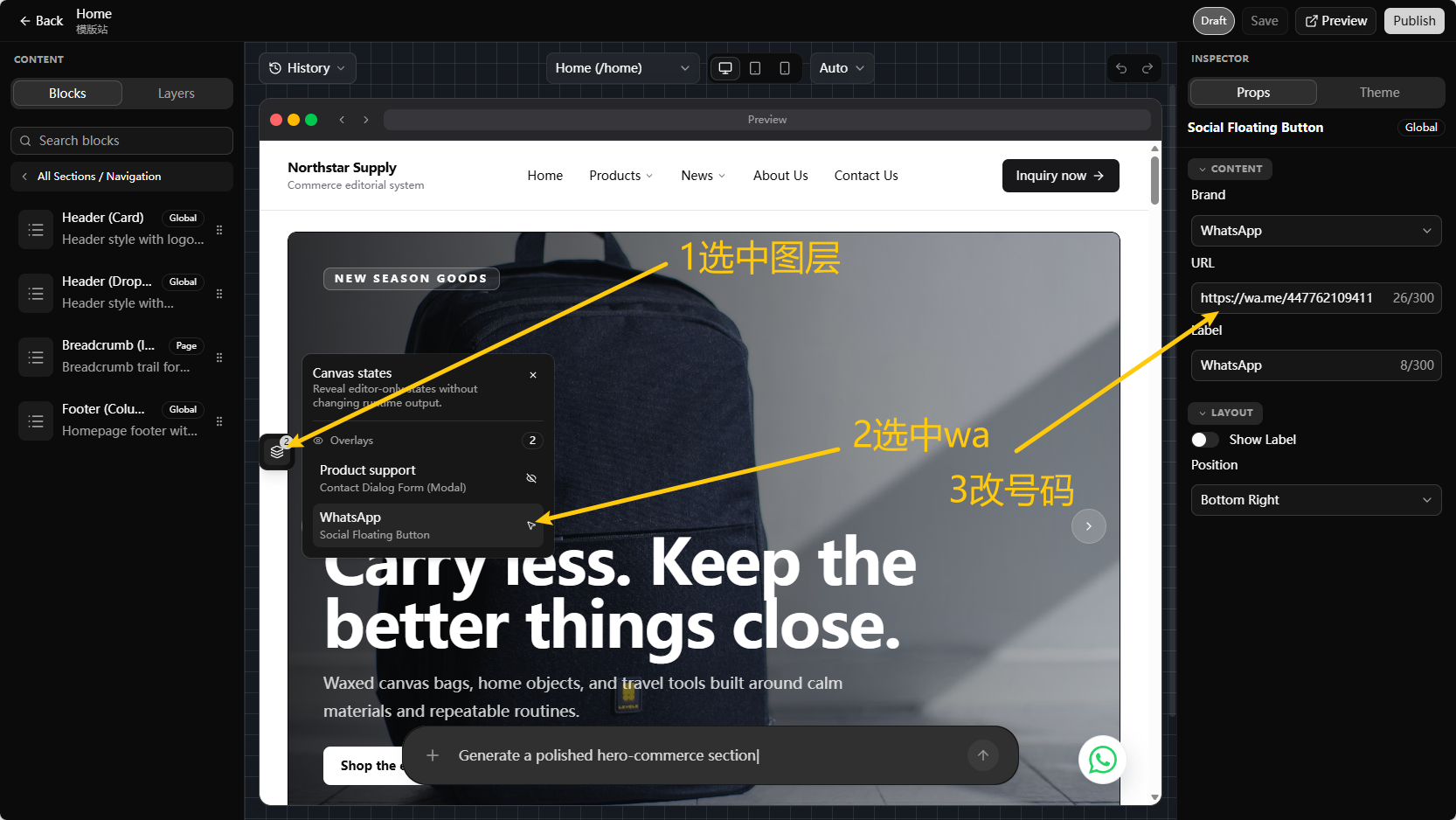
- Select the page layer or the WhatsApp item in
Layers. - Find
URLin the rightPropspanel. - Replace the old link with your number link.
- Click
Previewand test it. - Click
Publishafter it works.
4. Number Format
Recommended:
https://wa.me/861234567890
Common mistakes:
| Wrong format | Why to avoid it |
|---|---|
https://wa.me/+861234567890 | Do not add + in a wa.me link |
https://wa.me/86 1234567890 | Do not add spaces |
https://wa.me/(86)1234567890 | Do not add brackets |
861234567890 | A number alone may not open WhatsApp; use the full link |
Do not stop after the icon appears. Click the button and confirm it opens WhatsApp with your own number.
5. Pre-Launch Check
Before publishing, check:
- The WhatsApp icon appears in the bottom-right corner.
- Clicking it opens WhatsApp.
- The opened number is your own number.
- On mobile, it does not cover important buttons or text.
- The page has only one main WhatsApp floating button.
Next
Contact Links - make phone numbers and email addresses clickable too.
Popup Form - use a popup form when you need visitor name, email, and inquiry details.